Make
Make (formerly Integromat) is a visual automation platform. Connect it to Formtorch and every new submission starts a Make scenario, so you can add leads to a CRM, post to a channel, or write a row to a database without writing code.
The connection is a Formtorch webhook pointed at a Make Custom webhook. There’s no Make account to authorize and nothing to install. Setup takes about five minutes.
What you need
- A Formtorch form on the Starter or Pro plan
- A Make account (the free Make plan works)
Connect a form to Make
Create a Custom webhook in Make
-
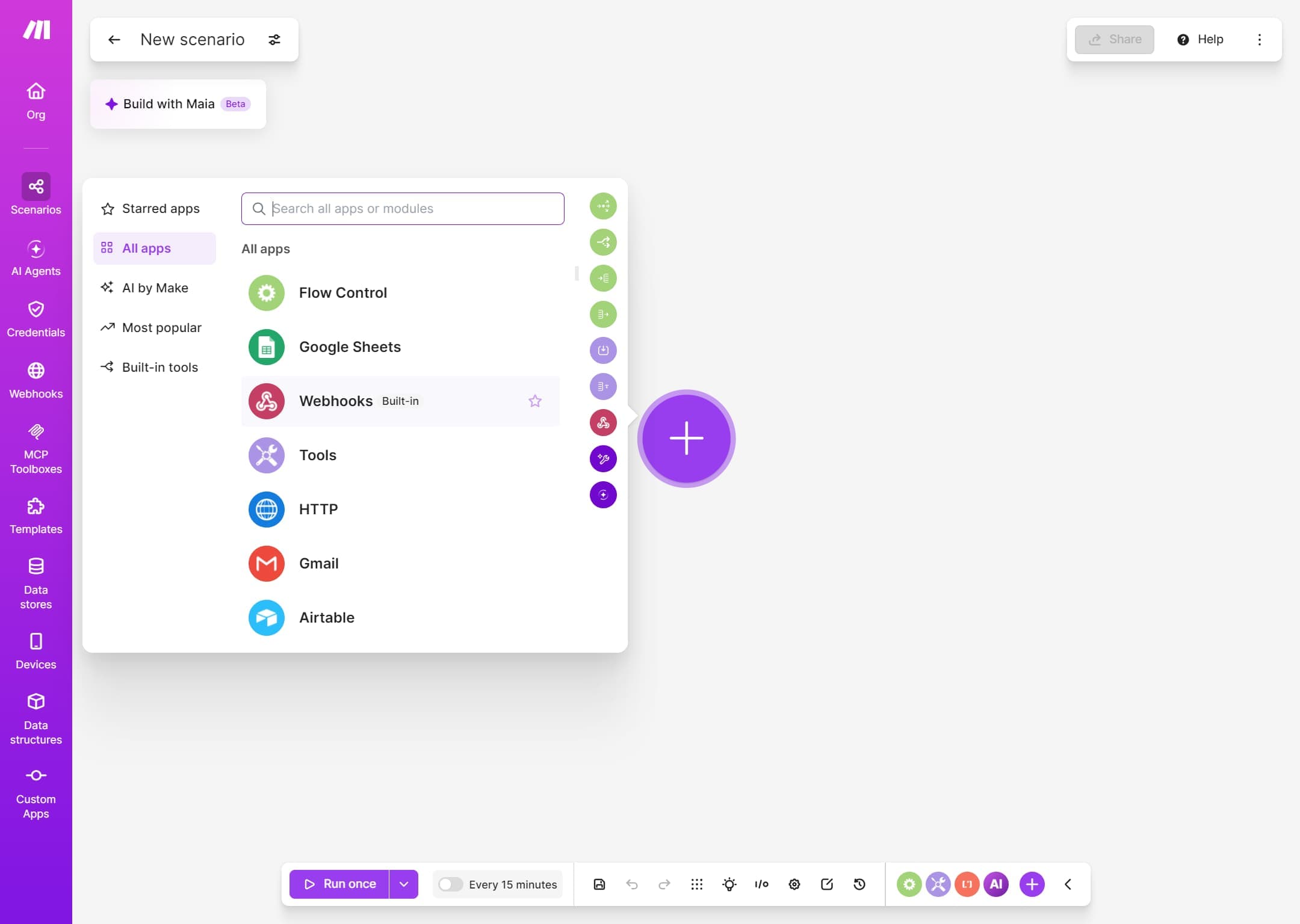
In Make, click Create a new scenario.
-
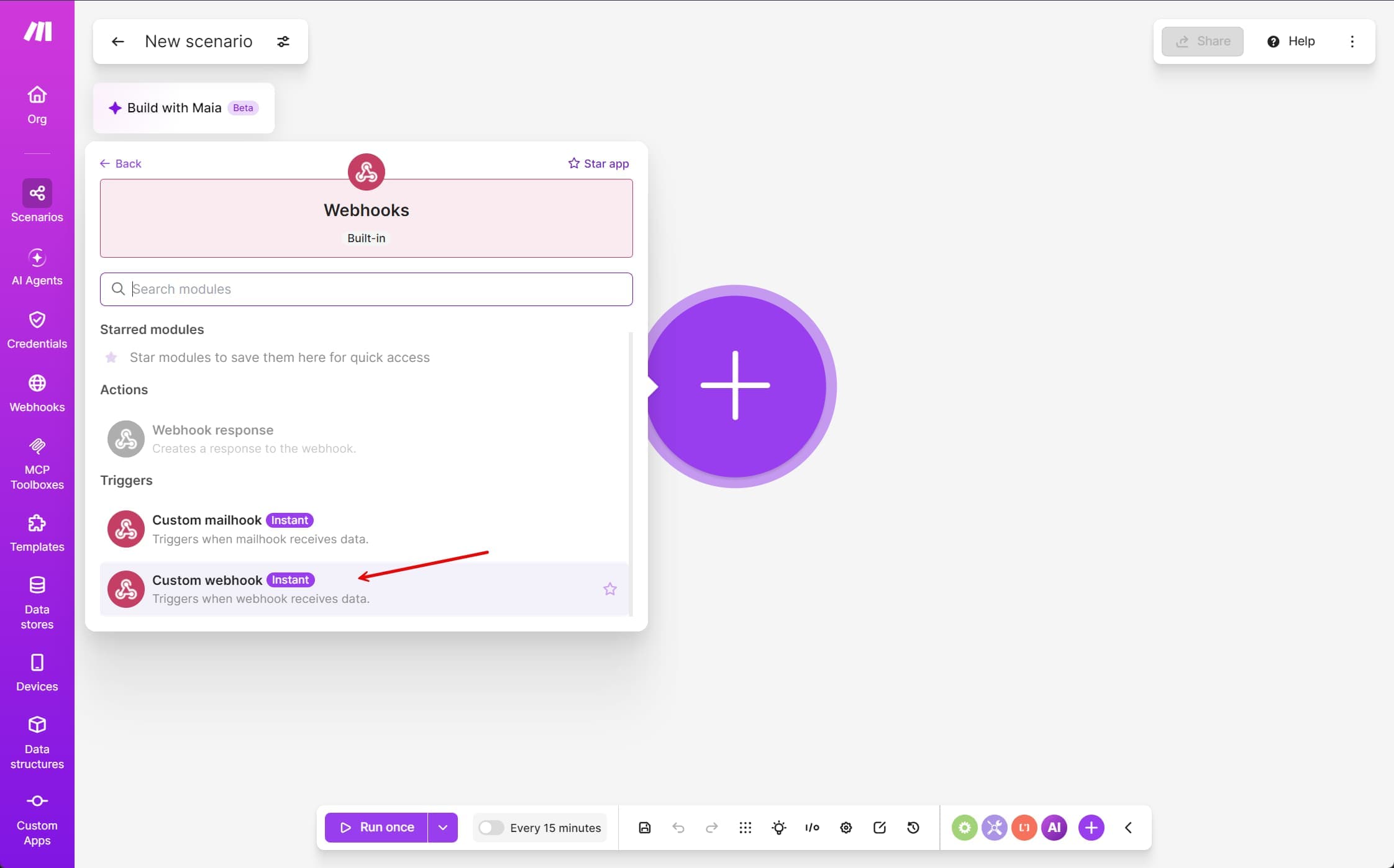
Click the big +, search for Webhooks, and pick Custom webhook.
-
Click Add, name the webhook (for example,
Formtorch: Contact form), and click Save.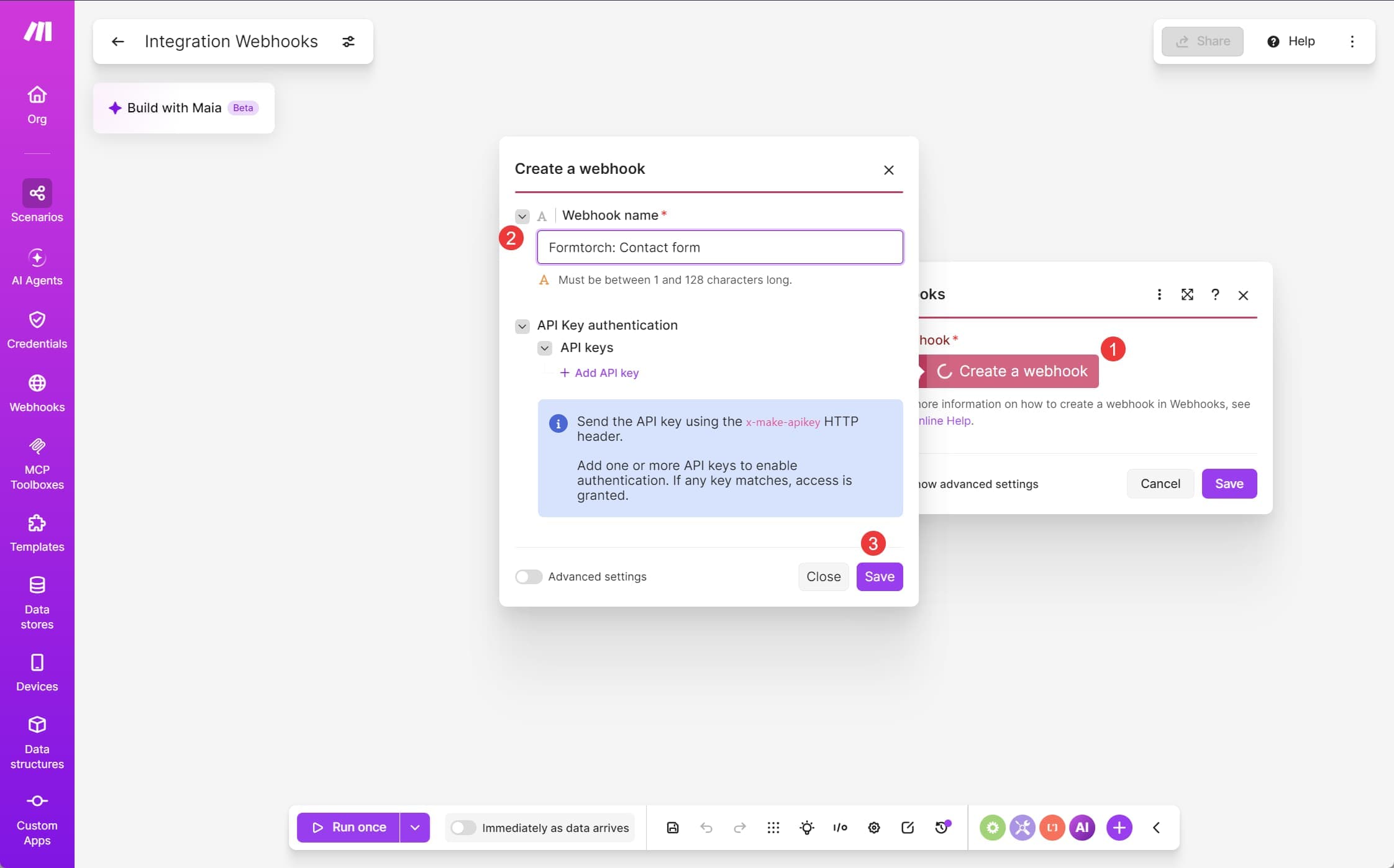
-
Make shows the webhook URL. Click Copy address to clipboard. It starts with
https://hook.(for example,https://hook.us2.make.com/...).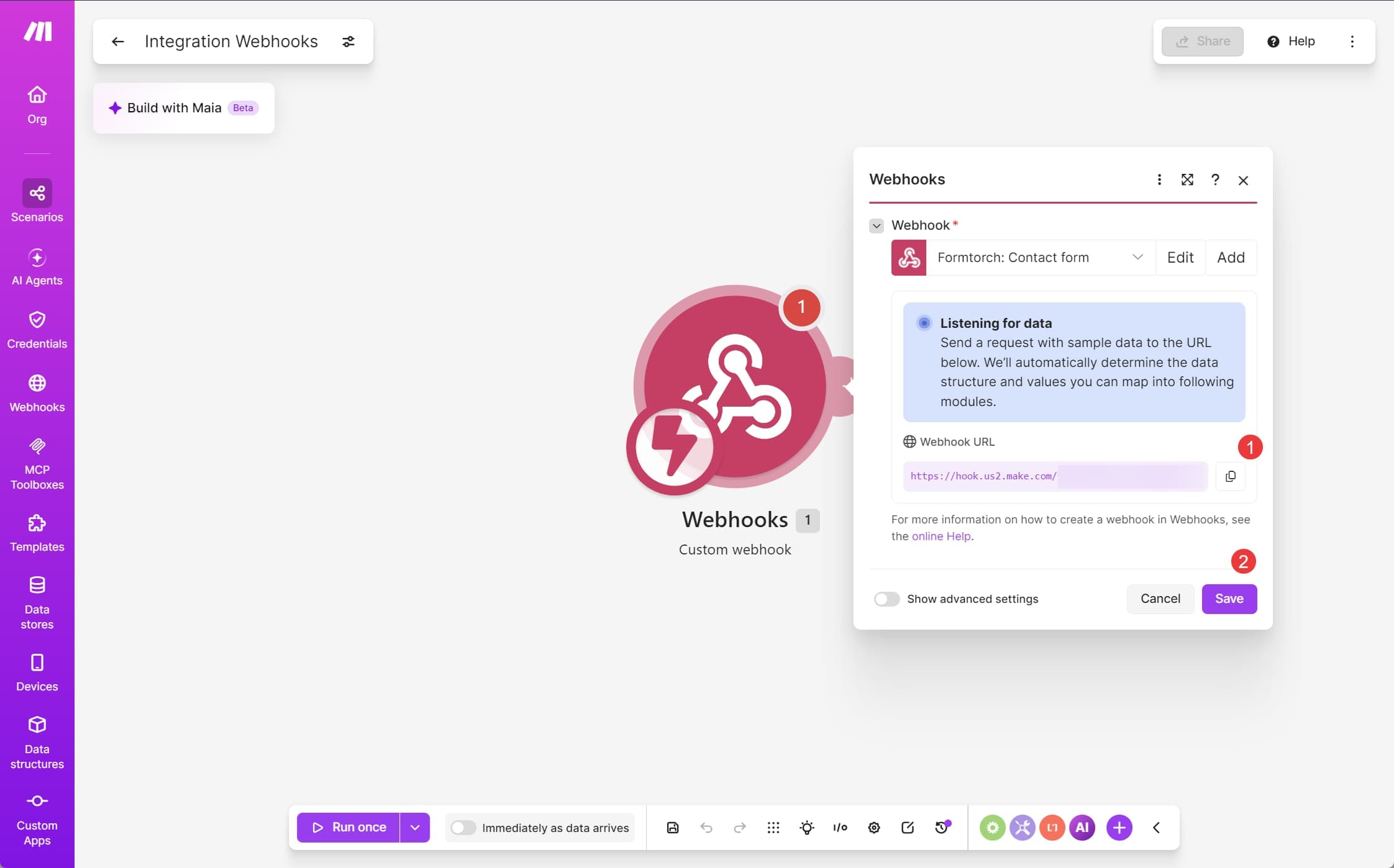
Don’t use Custom mailhook. It gives an email address like ...@hook.us2.make.com, which receives emails, not webhooks.
Leave this screen open. Make now shows “Determining data structure” while it waits for the first request.
Add the URL to your form in Formtorch
-
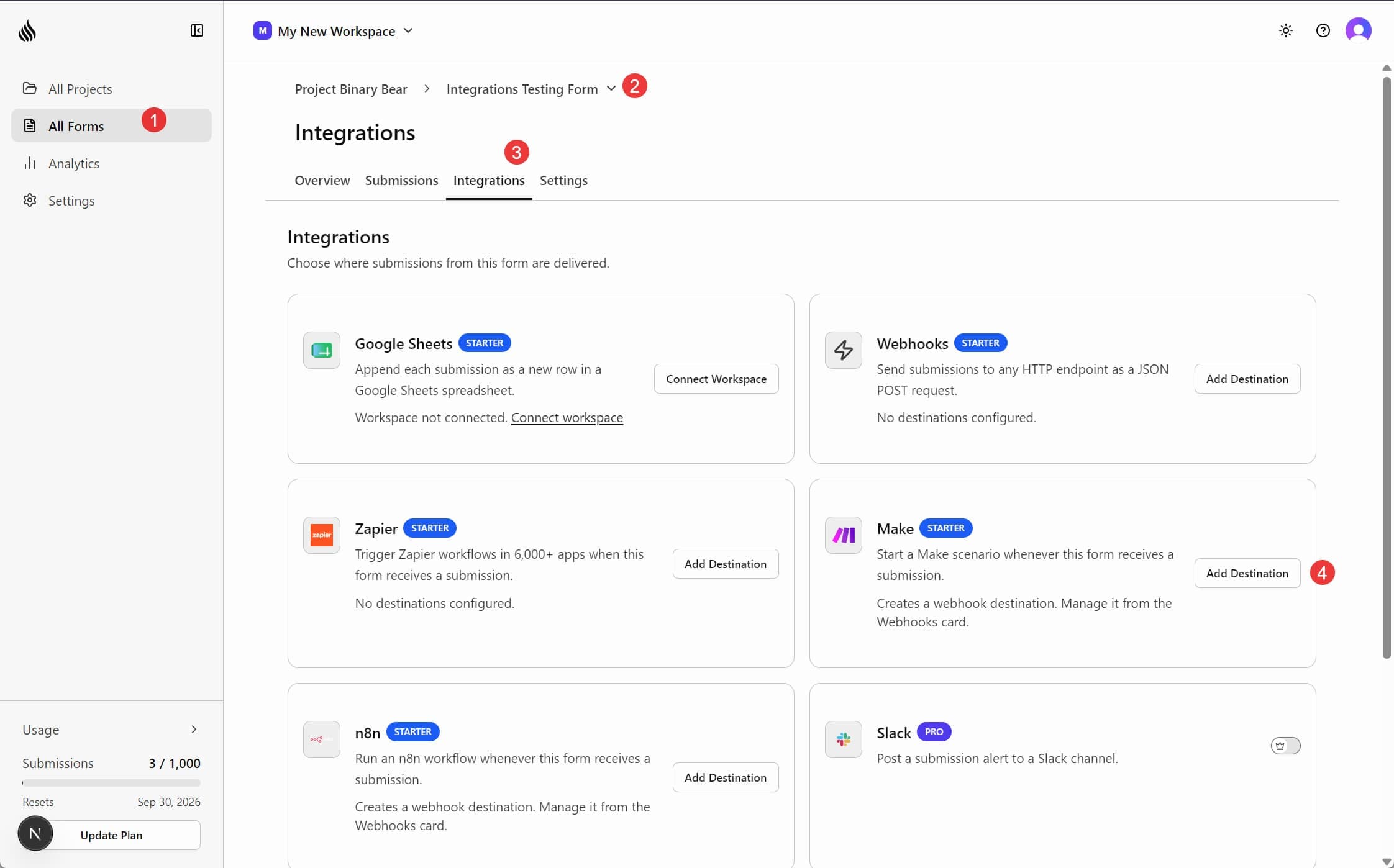
Open the form in the dashboard and go to Integrations.
-
On the Make card, click Add Destination, then Add Destination again in the panel that opens.
-
Paste the Make URL and click Add Destination. The label is pre-filled as
Make; change it if you like.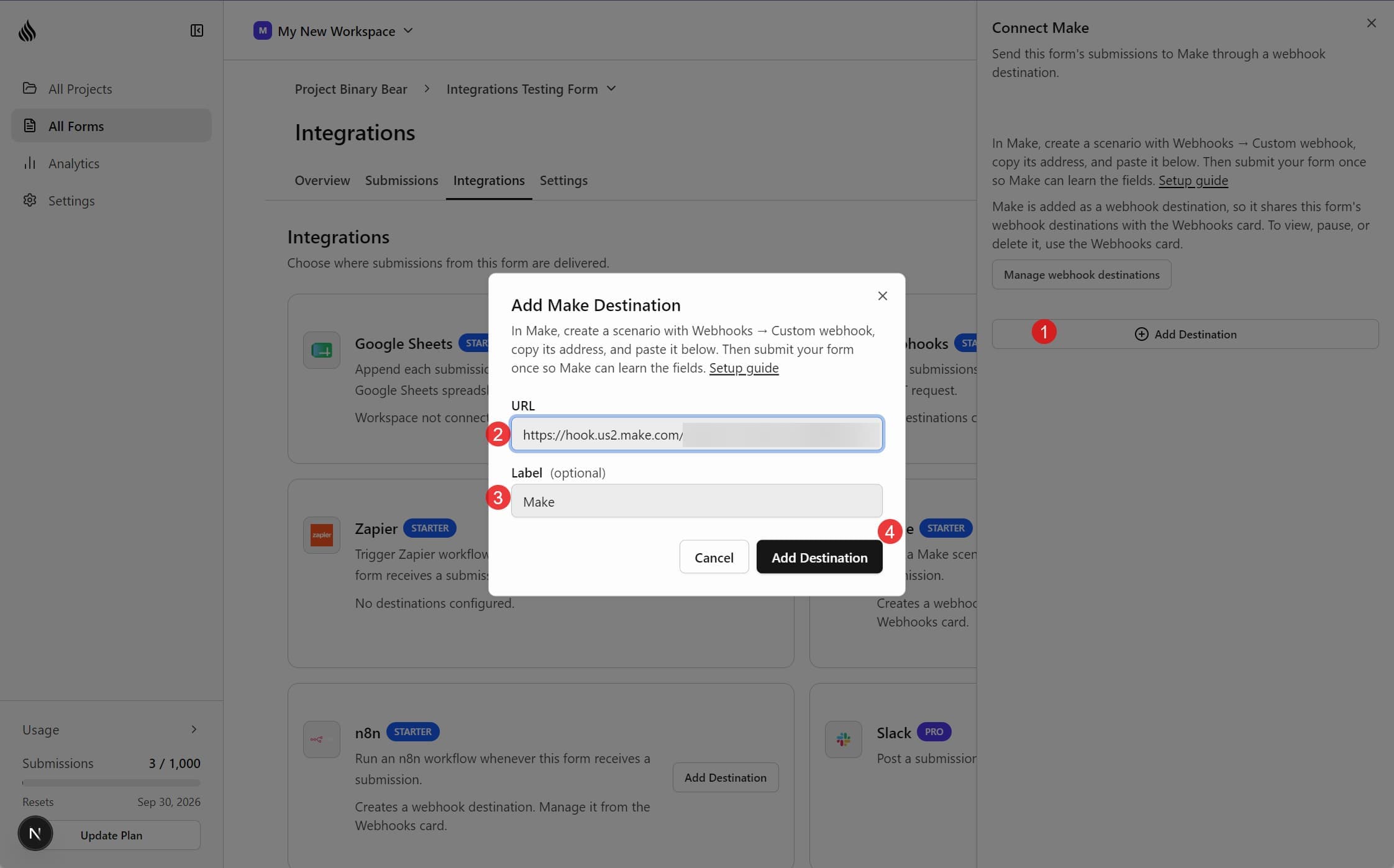
Formtorch shows a signing secret once. You don’t need it for Make, so you can close the dialog.
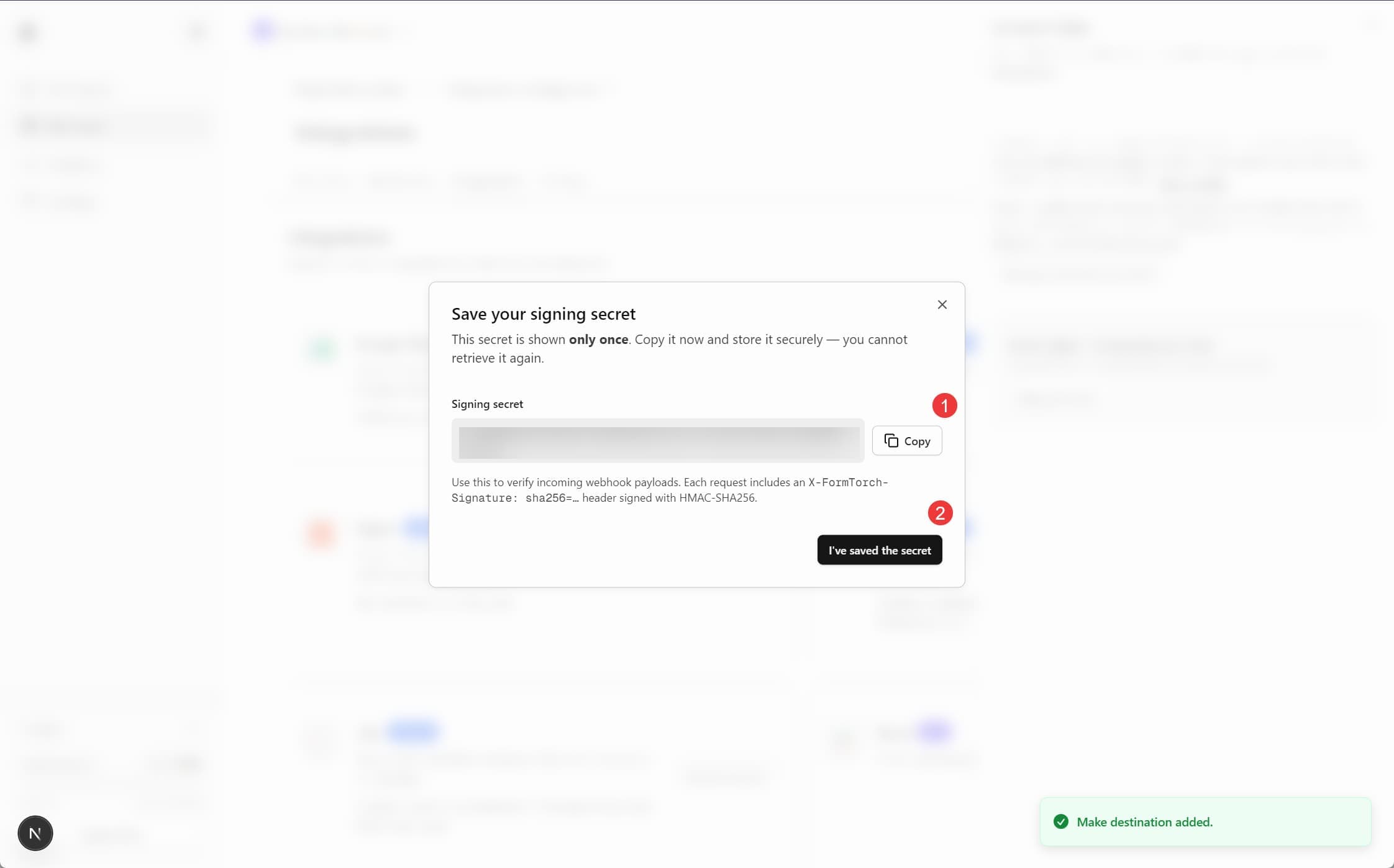
The Make card then shows Active on this form. Click Manage on it to see, pause, or remove the destination. It’s also listed on the Webhooks card with a Make badge, and counts as one of the form’s webhook destinations.
Send one real submission
Submit your form once from your site, like a visitor would. Make receives it and shows “Successfully determined”.
Test submissions (_test) and submissions flagged as spam are never sent to
per-form destinations. If Make keeps waiting, send a normal submission from
your live form.
Map the fields and turn the scenario on
- Add the next module (for example, Google Sheets → Add a row or HubSpot → Create a contact).
- Map your form fields from submission → data (for example,
submission.data.email). - Click Save, then switch the scenario ON. Scenarios that start with a webhook run as soon as a submission arrives.
That’s it. Every new submission on that form now runs your scenario.
What Make receives
Each submission arrives as one JSON request:
{
  "event": "form.submitted",
  "timestamp": "2026-09-29T14:30:00.000Z",
  "delivery_id": "d3f456abc789",
  "form": {
    "id": "a1b2c3d4e5",
    "name": "Contact Form"
  },
  "submission": {
    "id": "x9y8z7w6v5",
    "created_at": "2026-09-29T14:30:00.000Z",
    "data": {
      "name": "Alex",
      "email": "alex@example.com",
      "message": "Hello there"
    },
    "is_test": false,
    "is_spam": false
  }
}
Your form’s own fields are under submission.data, using the name attributes from your HTML. Reserved fields such as _redirect and _honeypot are removed before delivery.
If you add a new field to your form later, open the Custom webhook module in Make, click Redetermine data structure (called Detect new values in newer versions of Make), and submit the form once more.
Plan availability
| Plan | Make |
|---|---|
| Free | Not available |
| Starter | ✓ (uses the form’s 1 webhook destination) |
| Pro | ✓ (unlimited webhook destinations) |
Make uses a per-form webhook destination, so it counts toward the same per-form limit as any other webhook. On Starter, each form can send to one destination: Make, n8n, or another webhook URL. Different forms can each have their own. See the pricing page for a full plan comparison.
One scenario for every form
If you’d rather run a single scenario for all your forms, paste the Make URL into the workspace-wide endpoint in Settings → Webhooks instead, and subscribe only to form.submitted. Use form.id or form.name in a Make Router or Filter to branch per form. The workspace endpoint also has a Send Test button, which sends a sample payload that Make can use to determine the data structure. See Webhooks for how the two options differ.
Delivery and retries
Formtorch treats Make like any other webhook destination:
- Retries: if Make doesn’t return a
2xxwithin 30 seconds, Formtorch retries with exponential backoff, up to 6 attempts in total. - Status: on the form’s Submissions tab, hover over a submission’s delivery badge to see its Delivery history, or open the submission and check Integrations on its Metadata tab.
- Pausing and removing: click Manage on the Make card on the form’s Integrations tab. Pausing stops sending without deleting it. Settings → Integrations shows which forms use Make.
If your scenario is off, Make still accepts requests and holds them in the webhook’s queue until you turn it back on. Check the webhook’s queue in Make if submissions seem to be missing. Make also deactivates a webhook that isn’t attached to any scenario for 5 days, so keep it connected to a scenario.
Security
Treat the Make webhook URL like a password: anyone who has it can send data to your scenario. If it leaks, delete the webhook in Make, create a new one, and replace the destination in Formtorch.
Every request is also signed with an X-FormTorch-Signature header. Most Make scenarios don’t need to check it. If yours sends data somewhere sensitive, see Signature verification.
Troubleshooting
Make says “Determining data structure” and never finishes. Send a normal, non-test submission from your live form. Test and spam submissions aren’t delivered.
Fields are missing in the mapping panel. Click Redetermine data structure (or Detect new values) on the Custom webhook module and submit the form again with every field filled in.
Formtorch says it’s a mailhook email address. You copied a Custom mailhook address (...@hook.us2.make.com). Replace that trigger with Webhooks → Custom webhook and copy its https:// URL.
The scenario ran but a field is empty. Check that the field’s name attribute in your HTML matches what you mapped. Field names are case-sensitive.