Webflow Quickstart
Webflow has built-in forms, but submissions go to Webflow’s own system. To route them to Formtorch instead, override the form action in the Designer settings.
Webflow handles the form UI and styling. Formtorch handles the backend.
What you’ll build
In this guide, you’ll connect a Webflow form to Formtorch so that:
- submissions go to your Formtorch dashboard instead of Webflow
- you receive email notifications on every submission
- spam is blocked automatically
Steps
Create a form endpoint
Sign in to Formtorch Dashboard , create a project, then create a form. Copy the endpoint URL.
It looks like this:
https://formtorch.com/f/abcd1234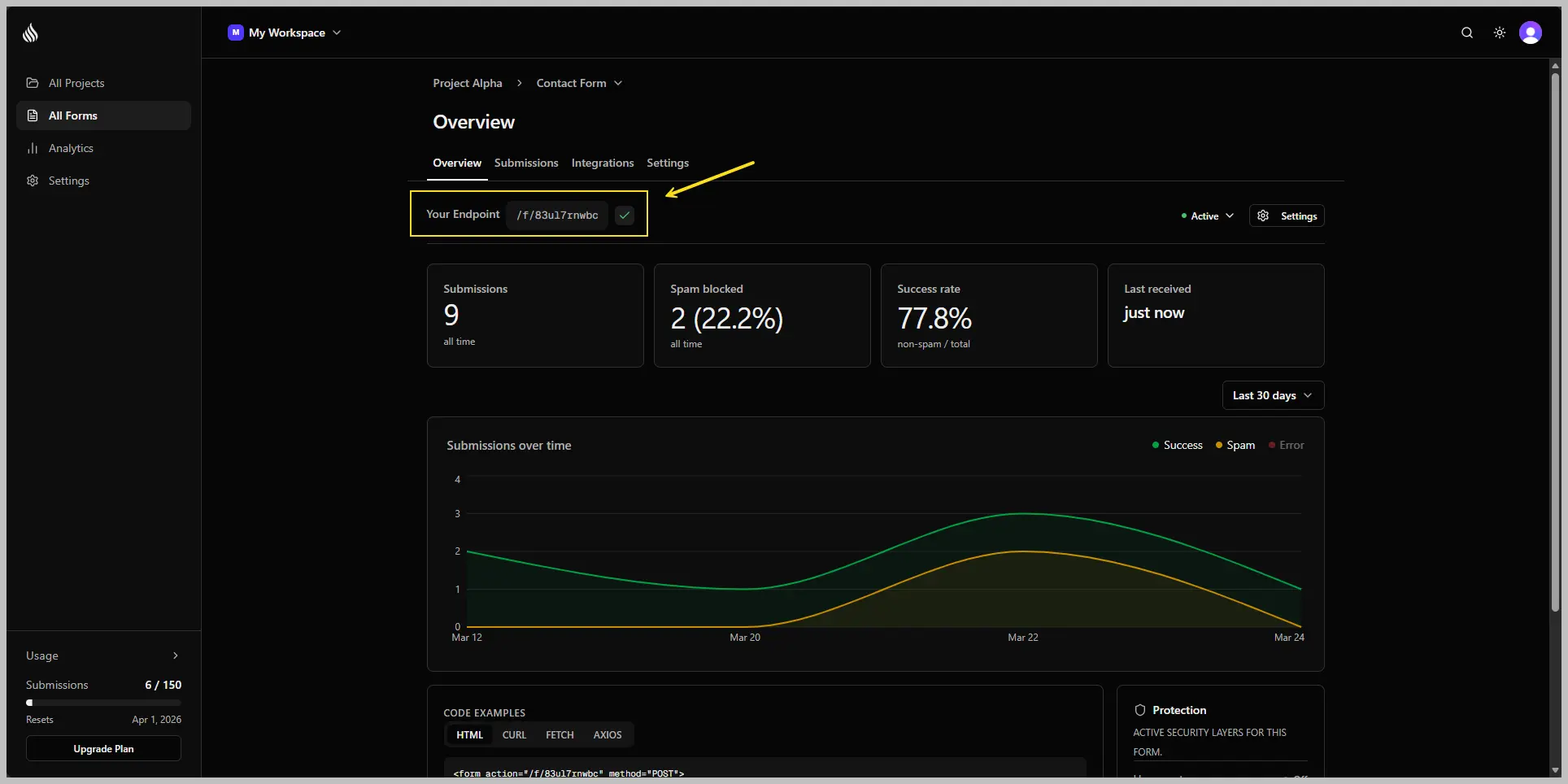
Add a Form block in Webflow
In the Webflow Designer, add a Form Block element to your page. Build out your fields as normal.
Override the form action
- Select the Form Block element
- Open the Settings panel (the gear icon)
- Find the Action field
- Paste your Formtorch endpoint URL
- Set Method to
POST
Check field names
Each input, textarea, and select inside your form needs a unique Name attribute.
In Webflow:
- Select the input element
- Open the Settings panel
- Set the Name field to something descriptive (e.g.
name,email,message)
Webflow’s default names (like Name, Email, Message) work fine. Just make sure no two fields share the same name.
Publish and test
Publish your site, fill in the form, and submit it.
Head over to the Submissions tab in your dashboard , you’ll see the submission sitting there, ready to go. If email notifications are enabled, check your inbox. The email should land within a few seconds.
You’re done
Your Webflow form is live and routing submissions into Formtorch. That’s it.
From here, you can set up a custom redirect, enable test mode while you’re building, or explore the dashboard to see everything Formtorch captured.
Custom success redirect
The easiest way to send visitors to your own thank-you page is in Formtorch: open your form in the dashboard → Settings → Success Redirect, turn it on, and enter your URL. No changes to your Webflow site are needed.
Alternatively, add a hidden field to your Webflow form. The URL must be on the same site as your form:
- Add an HTML Embed element inside the form
- Paste this HTML:
<input type="hidden" name="_redirect" value="https://yoursite.com/thank-you" />If both are set, the Form Settings redirect wins. See Custom Redirects for details.
Test mode
To mark a submission as a test (useful during development), add another HTML embed inside the form:
<input type="hidden" name="_test" value="true" />Remove this before publishing your live site.
Webflow’s built-in form analytics and notification emails will no longer fire once you override the action. All submission data goes to Formtorch, where you can set up your own email notifications and webhooks.
Next steps
Your form is connected. Here are the most common things to set up next.