Cloudflare Turnstile
Cloudflare Turnstile is the least-friction CAPTCHA option available: it challenges bots silently in the background, with no puzzles or checkbox clicks for real users. Most visitors won’t even know it’s there.
How it works
When a visitor submits your form, Turnstile’s JavaScript snippet runs a browser challenge and injects a short-lived token into the form data as cf-turnstile-response. Formtorch receives that token alongside the rest of the submission and verifies it with Cloudflare’s API before accepting the data. If the token is missing or invalid, the submission is rejected with a 400 error. You don’t write any verification code yourself; Formtorch handles that part.
Prerequisites
- A Cloudflare account (free tier is fine)
- A Formtorch form to attach Turnstile to
Setup
Register your site in the Cloudflare dashboard
Sign in to dash.cloudflare.com , then click Turnstile in the left sidebar. If you don’t see it, look under the Products section.
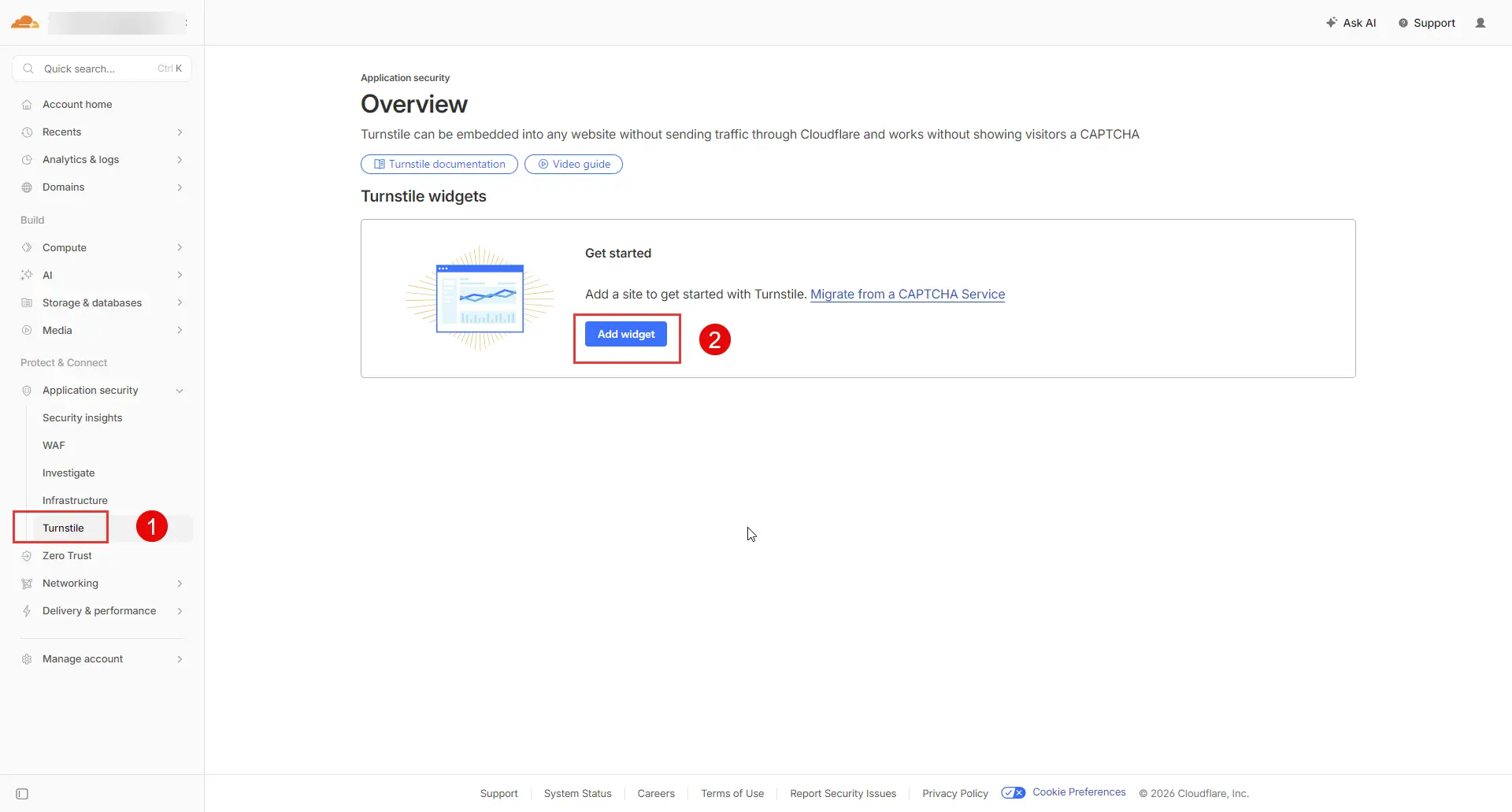
Click Add Widget. Give it a name (for your own reference), then enter the domain where your form lives, for example yoursite.com. You don’t need to include www or the protocol.
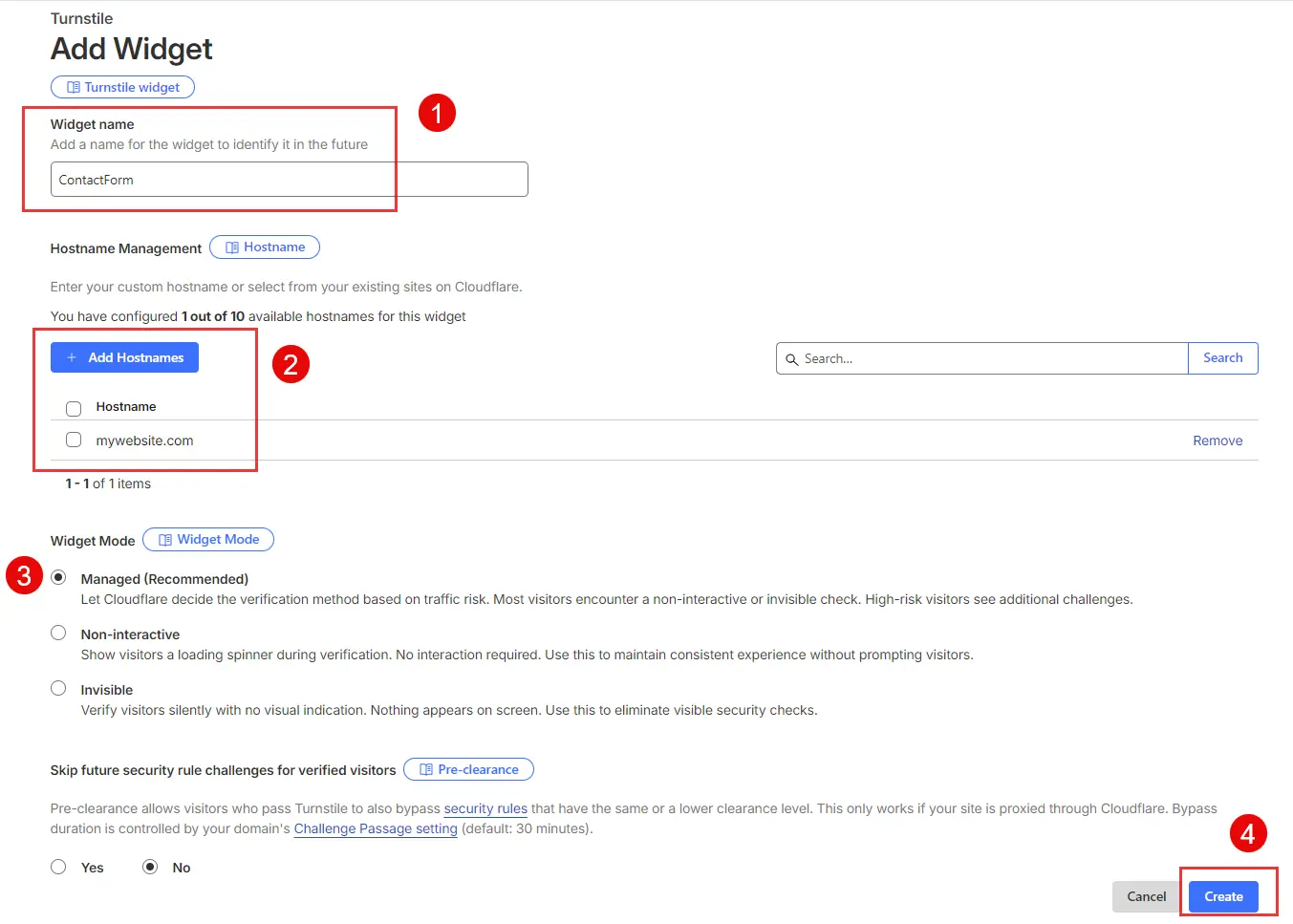
Choose a widget type. Managed is the right default for most forms: Cloudflare decides whether to show a visual challenge or pass the user silently. Non-interactive never shows a challenge. Invisible runs entirely in the background. If you’re unsure, leave it on Managed.
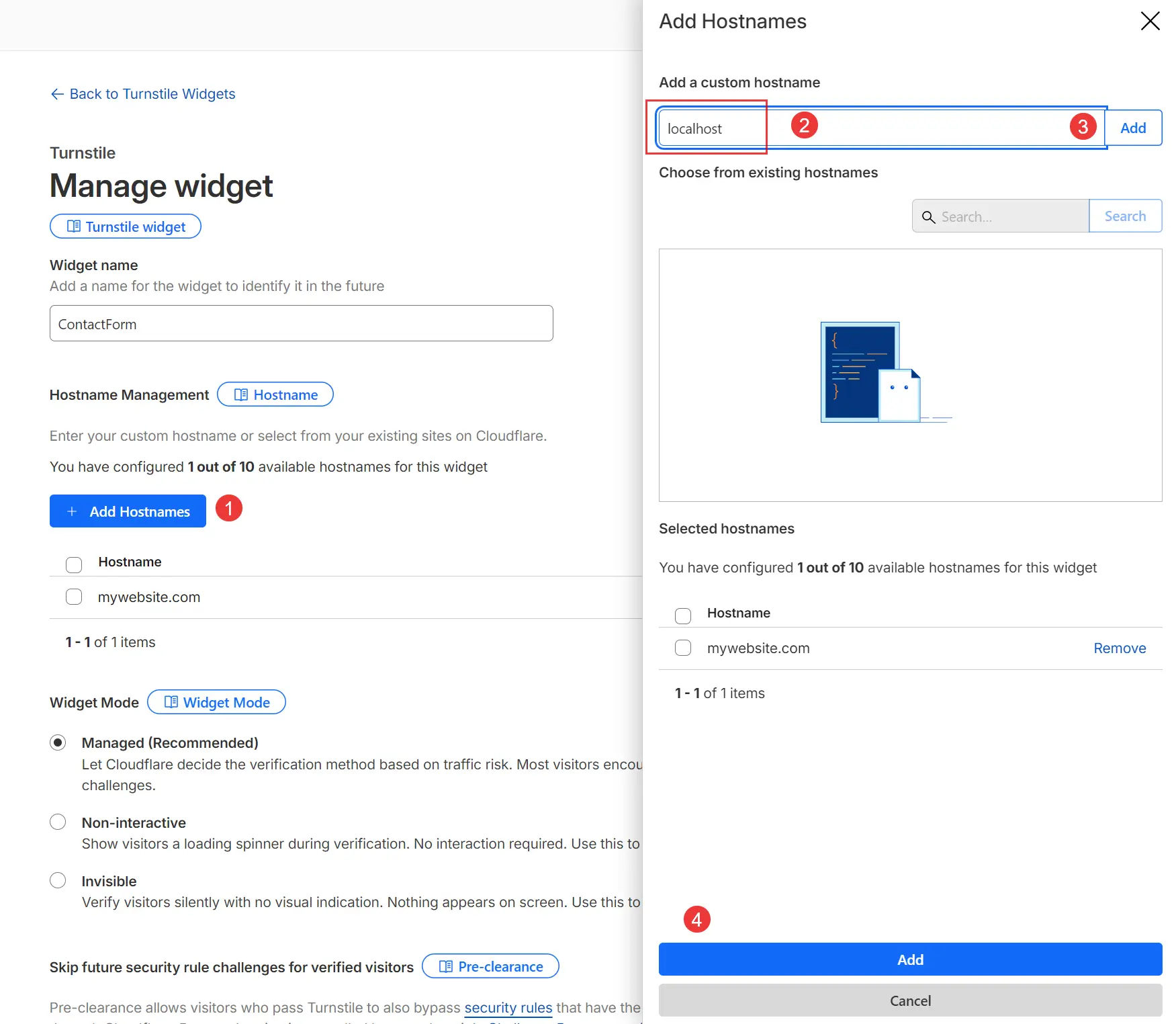
During local development, Turnstile won’t verify against localhost unless
you add it explicitly. In your site settings, add localhost as an allowed
domain while you’re building, then remove it before going to production. See
the Troubleshooting section below for more details.
Click Create. Cloudflare will show you your keys on the next screen.
Copy your site key and secret key
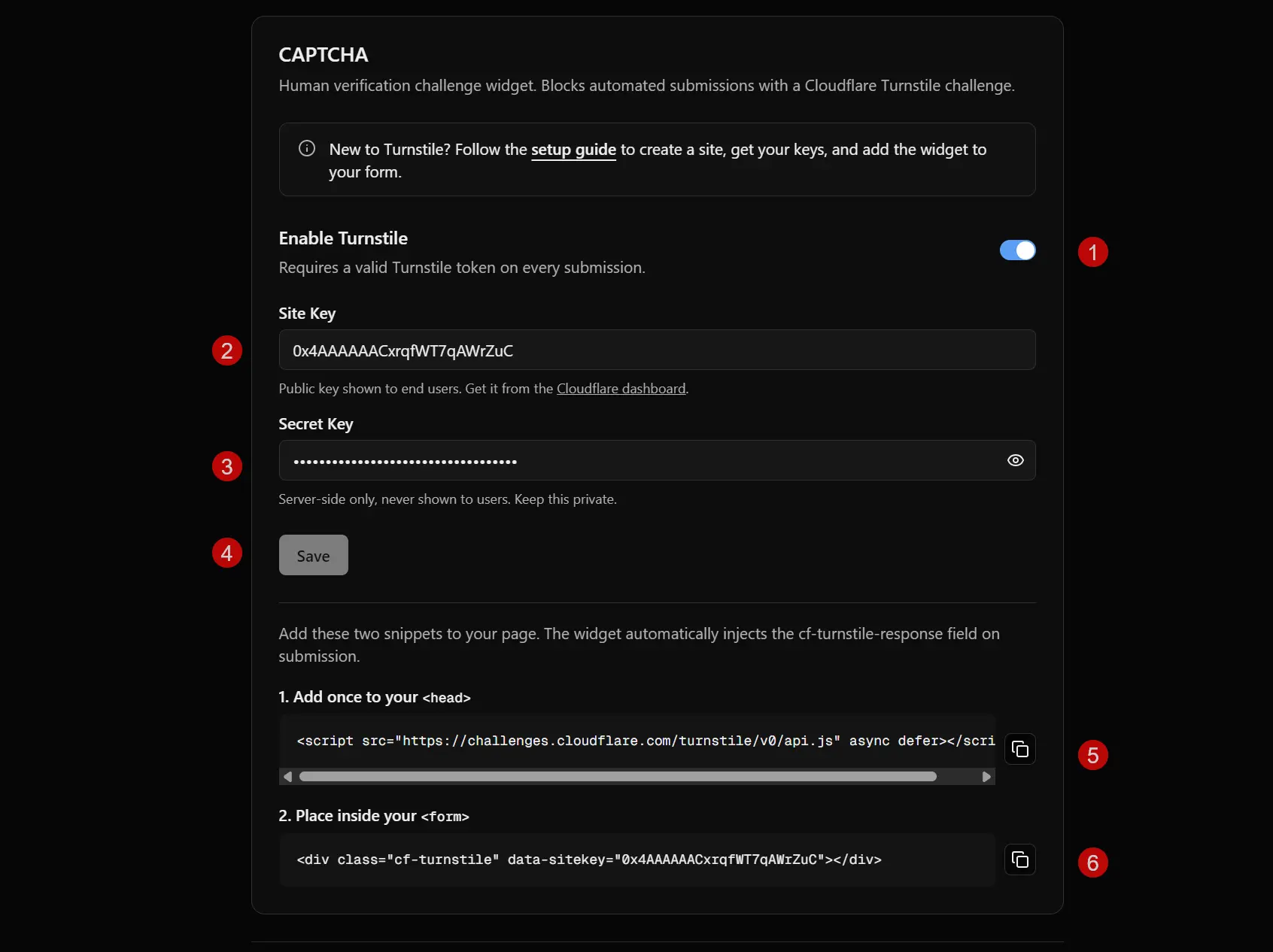
After creating the site, Cloudflare shows two keys: a Site Key (public, goes in your HTML) and a Secret Key (private, goes in Formtorch). Copy both now.
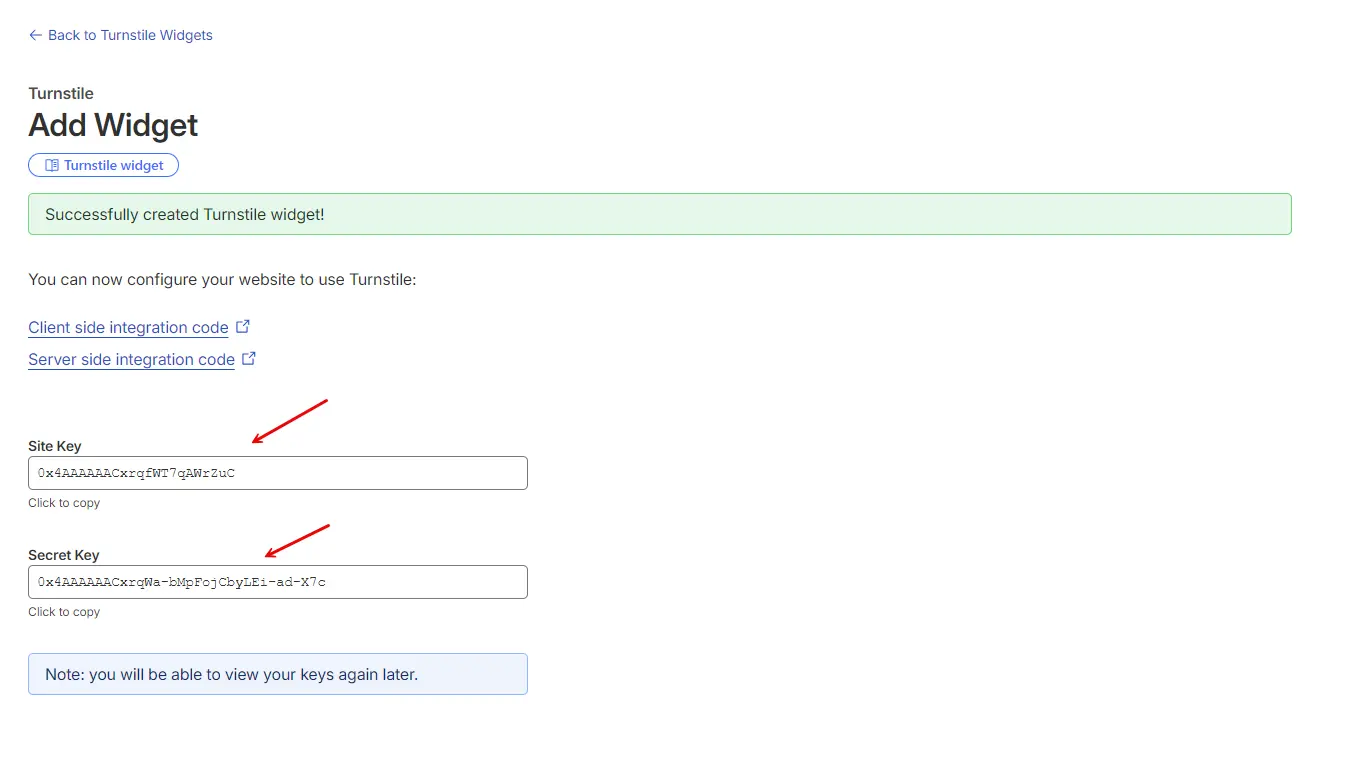
Never put your Secret Key in your HTML, JavaScript, or anywhere a visitor could read it. It belongs only in your Formtorch form settings.
Enable Turnstile in Formtorch
Open your form in the Formtorch dashboard , go to All Forms → Settings → CAPTCHA, and toggle CAPTCHA on. Select Cloudflare Turnstile from the provider list.
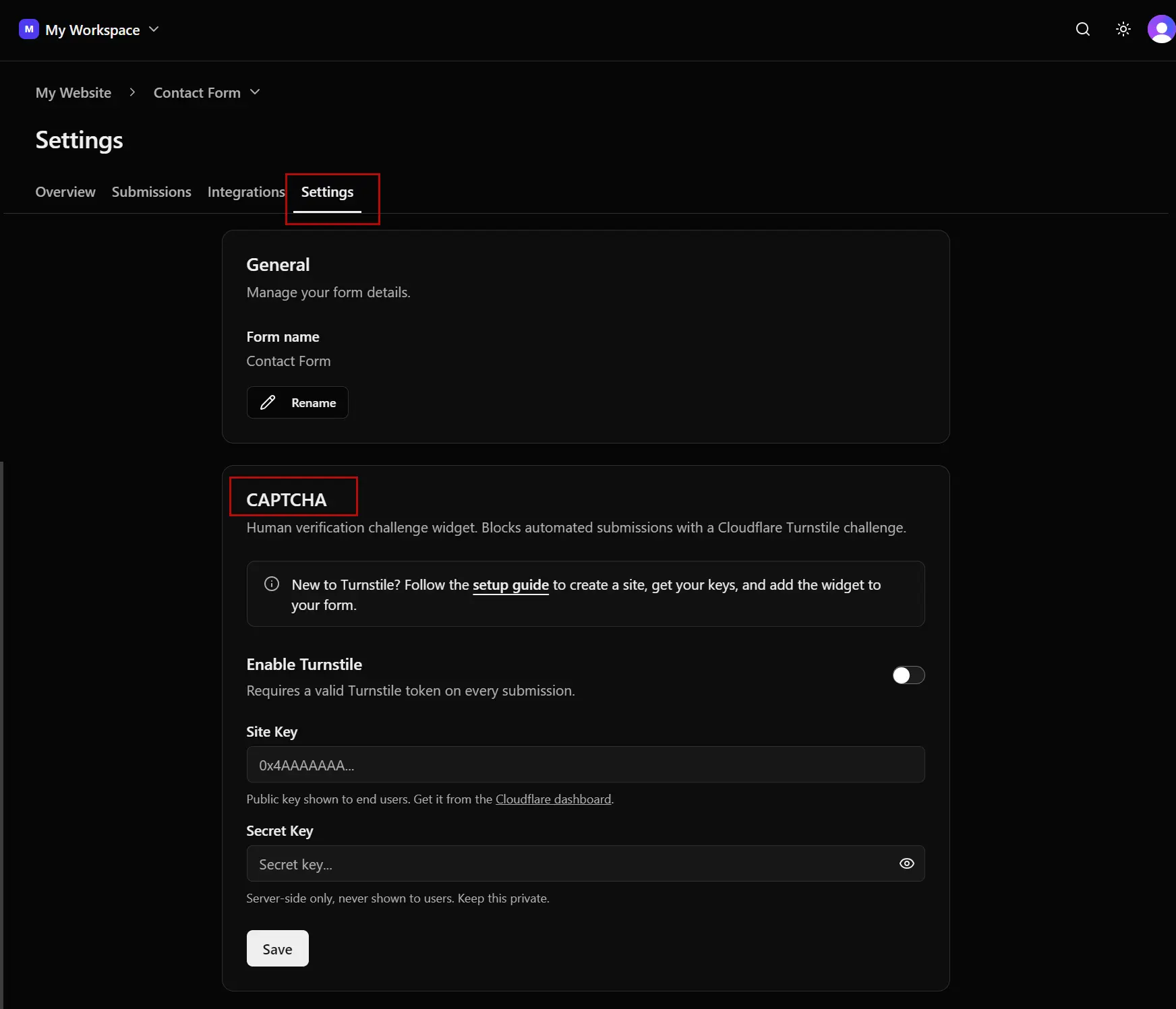
Paste your Site Key into the Site Key field and your Secret Key into the Secret Key field. Click Save.
Add the Turnstile widget to your form
Turnstile needs two things in your page: a script tag to load the library, and a div where the widget renders.
- Add the script tag once in your page
<head>or just before</body>. - Place the widget div inside your
<form>, right before the submit button.
HTML
<!-- In your <head> -->
<script
  src="https://challenges.cloudflare.com/turnstile/v0/api.js"
  async
  defer
></script>

<!-- Inside your <form> -->

<form action="https://formtorch.com/f/YOUR_FORM_ID" method="POST">
  <label>
    Name
    <input type="text" name="name" required />
  </label>

<label>
  Email
  <input type="email" name="email" required />
</label>

<label>
  Message
  <textarea name="message" required></textarea>
</label>

  <!-- Turnstile widget — renders the challenge here -->

<div class="cf-turnstile" data-sitekey="YOUR_SITE_KEY"></div>

  <button type="submit">Send message</button>
</form>Replace YOUR_SITE_KEY with the site key from Step 2, and YOUR_FORM_ID with your Formtorch form ID.
When the page loads, Turnstile runs its challenge automatically. Once it passes, it injects a hidden cf-turnstile-response field into your form. Formtorch reads that field when the form is submitted and verifies it with Cloudflare.
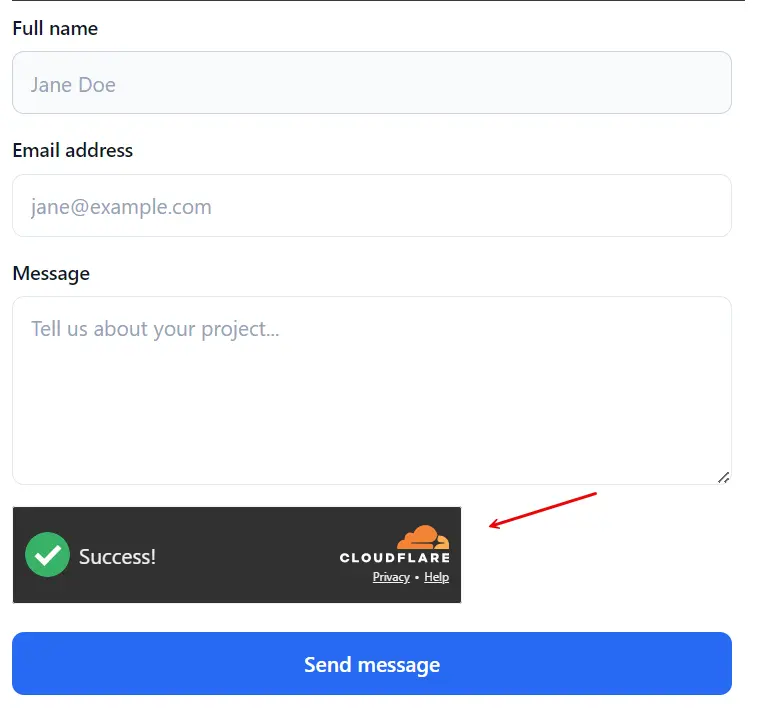
On the front-end, your form should display the Cloudflare Turnstile widget as in this screenshot. Copy the full code example with styling HERE to match with this exact screenshot (except for Turnstile widget).
Test the integration
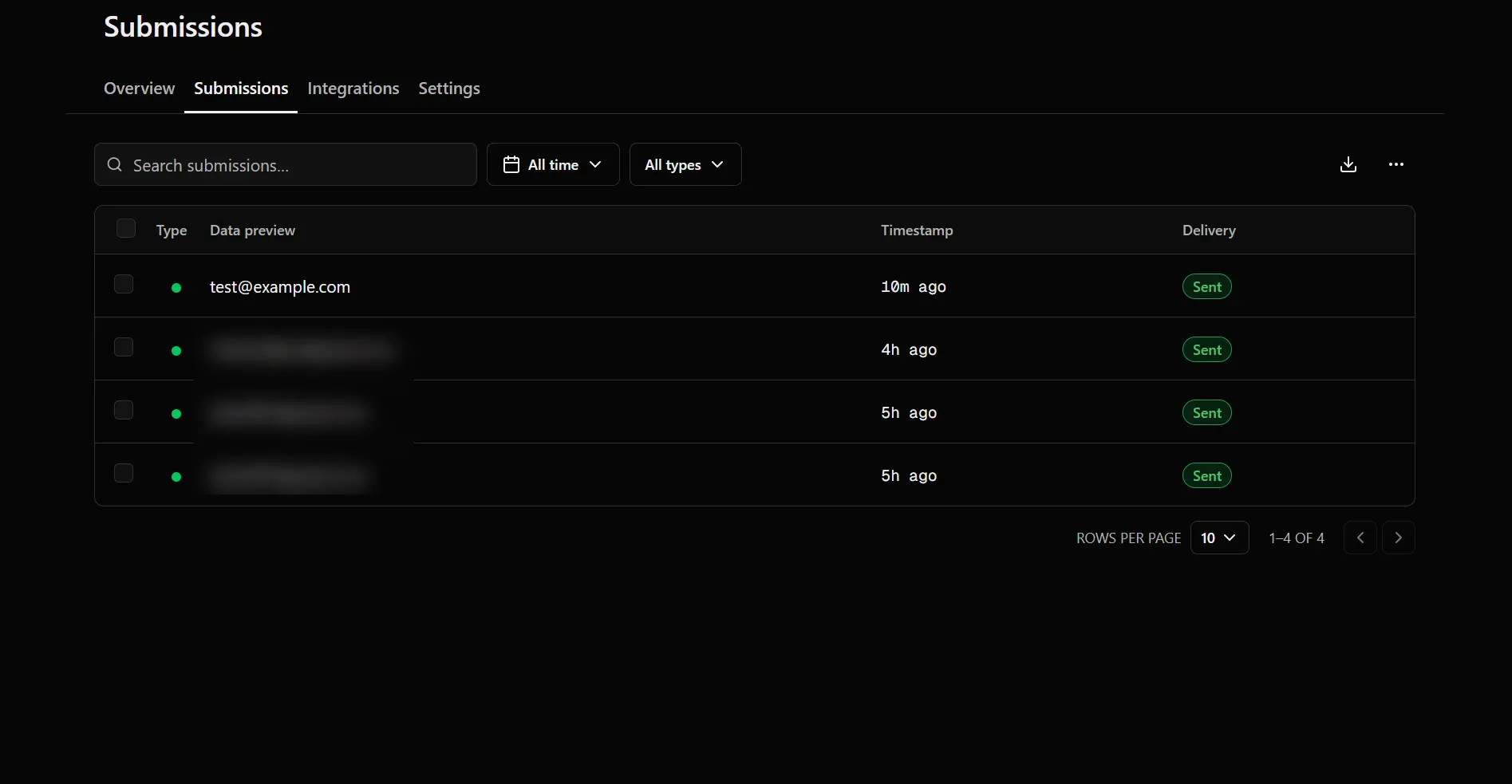
Submit your form. Head to your Formtorch dashboard and open the Submissions tab. You should see the submission listed. If CAPTCHA verification failed, the submission would have been rejected before reaching your dashboard.
That’s it. Turnstile is protecting your form.
Troubleshooting
Submissions are being rejected with a 400 error
The most common cause is a domain mismatch. The domain in your Cloudflare site settings must exactly match the domain where your form is hosted: no https://, no trailing slash, no subdomain unless you registered one. Open the browser console and check for errors from challenges.cloudflare.com to confirm the widget is loading at all.
The widget isn’t appearing
Check that the Turnstile script is loading before the widget div renders. In a single-page framework, load the script on mount rather than at the module level. Also confirm that data-sitekey contains your Site Key, NOT your Secret Key, they look similar but are different values.
Cloudflare Turnstile showing error “Unable to connect to website”

On the front-end, you may see Cloudflare Turnstile widget display the error as in this screenshot. It’s because Turnstile rejects requests from domains not listed in your site settings. The fix is to add localhost to the allowed domains list in Cloudflare while developing, then remove it before going live.
The token expires between submission attempts
Turnstile tokens are one-time-use. If a user hits a validation error (say, a required field was missed) and resubmits, the original token is already spent. Turnstile re-renders automatically and issues a fresh token, so you don’t need to handle rotation yourself. If you’re building a custom submission flow, wait for Turnstile to re-render before re-enabling the submit button.