Framer Quickstart
Framer doesn’t support custom form action overrides natively, so the cleanest approach is a Code Component: a React component you write directly in Framer.
What you’ll build
In this guide, you’ll add a working contact form to a Framer site that:
- sends submissions to Formtorch using
fetch - shows loading, success, and error states
- works as a native Framer Code Component
Steps
Create a form endpoint
Sign in to Formtorch Dashboard , create a project, then create a form. Copy the endpoint URL.
It looks like this:
https://formtorch.com/f/abcd1234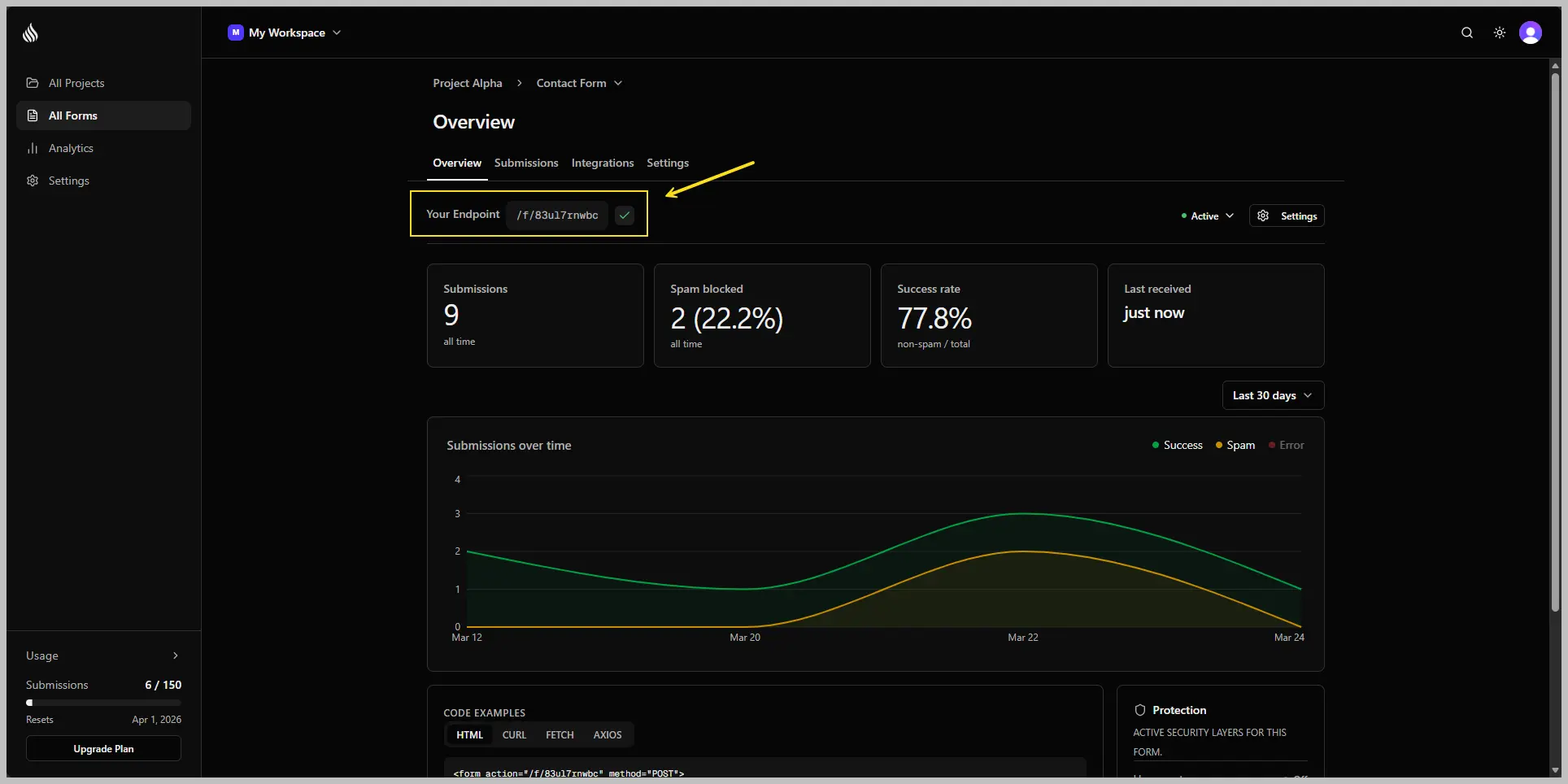
Create a Code Component in Framer
- Open your Framer project
- Go to Assets panel → Code tab
- Click + to create a new code component
- Name it
ContactForm
Paste the component code
Replace the default code with the following. Swap YOUR_FORM_ID for the ID you copied in Step 1.
import { useState } from "react";

export default function ContactForm() {
  const [status, setStatus] = useState<
    "idle" | "loading" | "success" | "error"
  >("idle");

  async function handleSubmit(e: React.FormEvent<HTMLFormElement>) {
    e.preventDefault();
    setStatus("loading");

    const res = await fetch("https://formtorch.com/f/YOUR_FORM_ID", {
      method: "POST",
      headers: { "X-Requested-With": "XMLHttpRequest" },
      body: new FormData(e.currentTarget),
    });

    setStatus(res.ok ? "success" : "error");
  }

  if (status === "success") {
    return (
      <p style={{ fontFamily: "sans-serif" }}>
        Message sent. We'll be in touch soon.
      </p>
    );
  }

  return (
    <form
      onSubmit={handleSubmit}
      style={{ display: "flex", flexDirection: "column", gap: 12 }}
    >
      <input name="name" type="text" placeholder="Name" required />
      <input name="email" type="email" placeholder="Email" required />
      <textarea name="message" placeholder="Message" rows={4} required />

      <button type="submit" disabled={status === "loading"}>
        {status === "loading" ? "Sending…" : "Send message"}
      </button>

      {status === "error" && (
        <p style={{ color: "red" }}>Something went wrong. Please try again.</p>
      )}
    </form>
  );
}
Add it to your canvas
Drag the ContactForm component from the Assets panel onto your page. Framer renders it as a live React component.
Submit the form
Preview or publish your site, fill in the fields, and hit submit.
Head over to the Submissions tab in your dashboard — you’ll see the submission sitting there, ready to go. If email notifications are enabled, check your inbox. The email should land within a few seconds.
You’re done
Your Framer site is live and collecting submissions. That’s it.
From here, you can enable test mode while you’re building, or explore the dashboard to see everything Formtorch captured.
Test mode
Use test mode while developing to avoid sending emails or using your quota. Add _test to your FormData before posting:
const data = new FormData(e.currentTarget);
data.append("_test", "true");

const res = await fetch("https://formtorch.com/f/YOUR_FORM_ID", {
  method: "POST",
  headers: { "X-Requested-With": "XMLHttpRequest" },
  body: data,
});
Test submissions appear in your dashboard with a badge and don’t count toward your quota. Remove this before publishing.
Styling the form
Framer Code Components accept Framer’s standard style props. You can also use CSS modules or inline styles. For a design that matches the rest of your Framer site, apply the same font and color variables your other components use.
Framer publishes to production automatically. Always test with _test=true
before finalizing, so you don’t fill your dashboard with test data.
Next steps
Your form is connected. Here are the most common things to set up next.