HTML Quickstart
Add your form endpoint as the action attribute. That’s it. No JavaScript, no build step, no dependencies.
What you build
Add Formtorch to any HTML form in minutes.
You’ll end up with a working form that:
- sends submissions to your dashboard
- triggers email notifications
- blocks spam automatically
Steps
Create a form endpoint
Sign in to Formtorch Dashboard , create a project, then create a form. Copy the endpoint URL.
It looks like this:
https://formtorch.com/f/abcd1234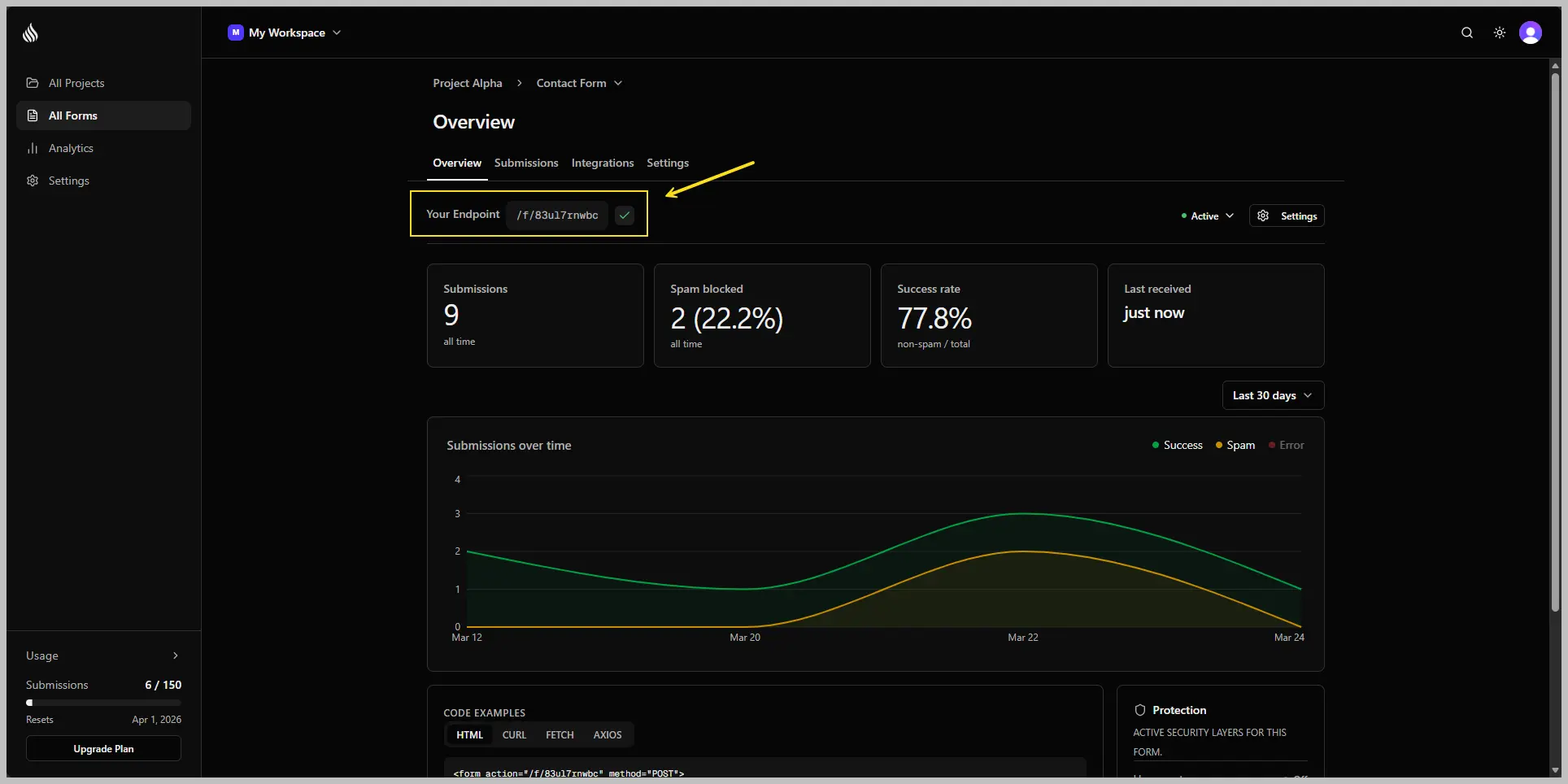
Create an HTML form
Add your endpoint as action and set method="POST". Make sure every input, textarea, and select has a name attribute because Formtorch uses it to label each field in the dashboard. Fields without a name won’t appear in your submissions.
<form action="https://formtorch.com/f/YOUR_FORM_ID" method="POST">
  <label>
    Name
    <input type="text" name="name" placeholder="Your name" required />
  </label>

  <label>
    Email
    <input type="email" name="email" placeholder="you@example.com" required />
  </label>

  <label>
    Message
    <textarea
      name="message"
      placeholder="Your message"
      rows="5"
      required
    ></textarea>
  </label>

  <button type="submit">Send message</button>
</form>
Submit the form
Open the page in your browser, fill in the fields, and hit submit.
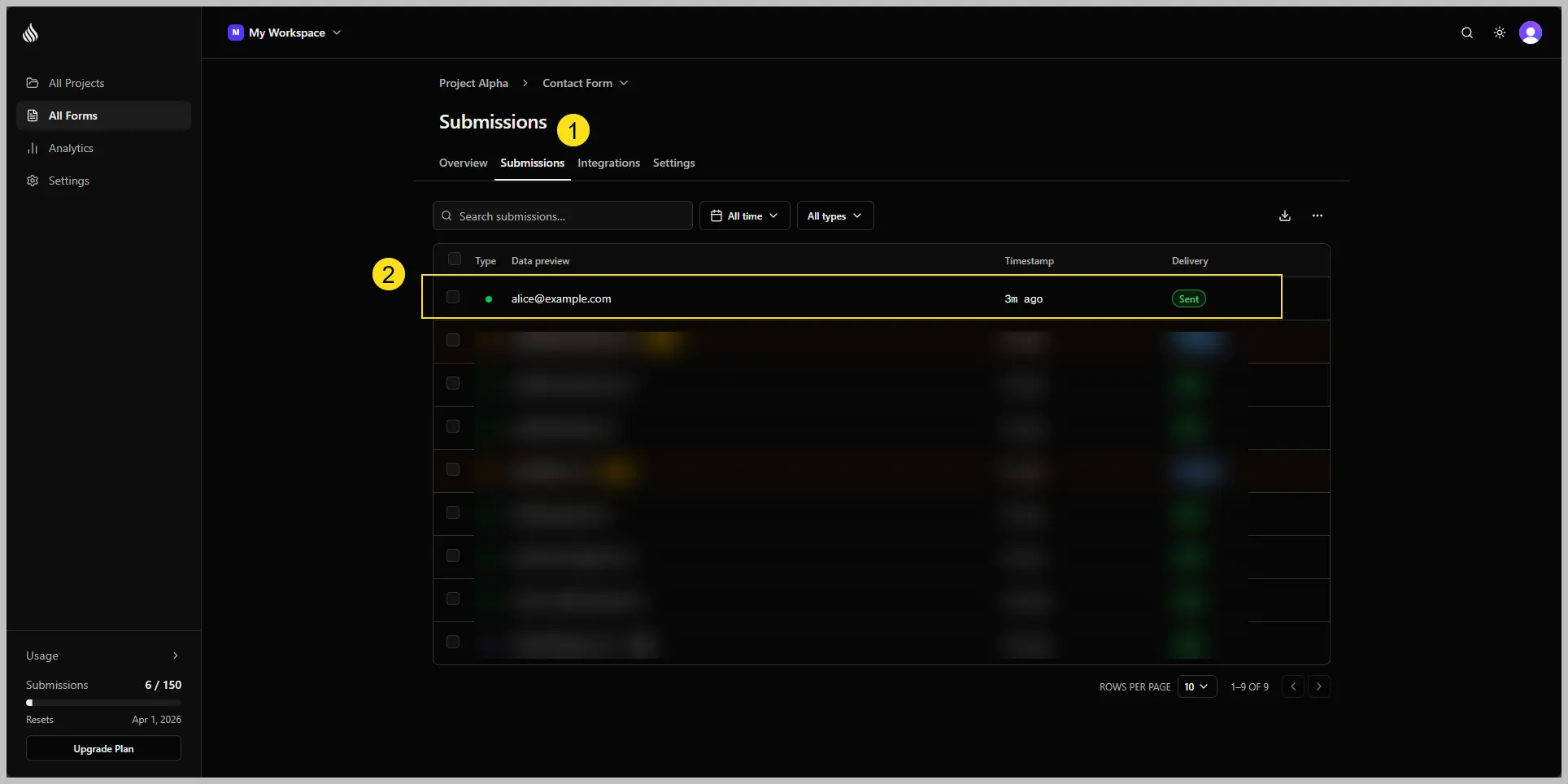
Formtorch will receive the data and show you a success page. Head over to the Submissions tab in your dashboard , you’ll see the submission sitting there, ready to go.
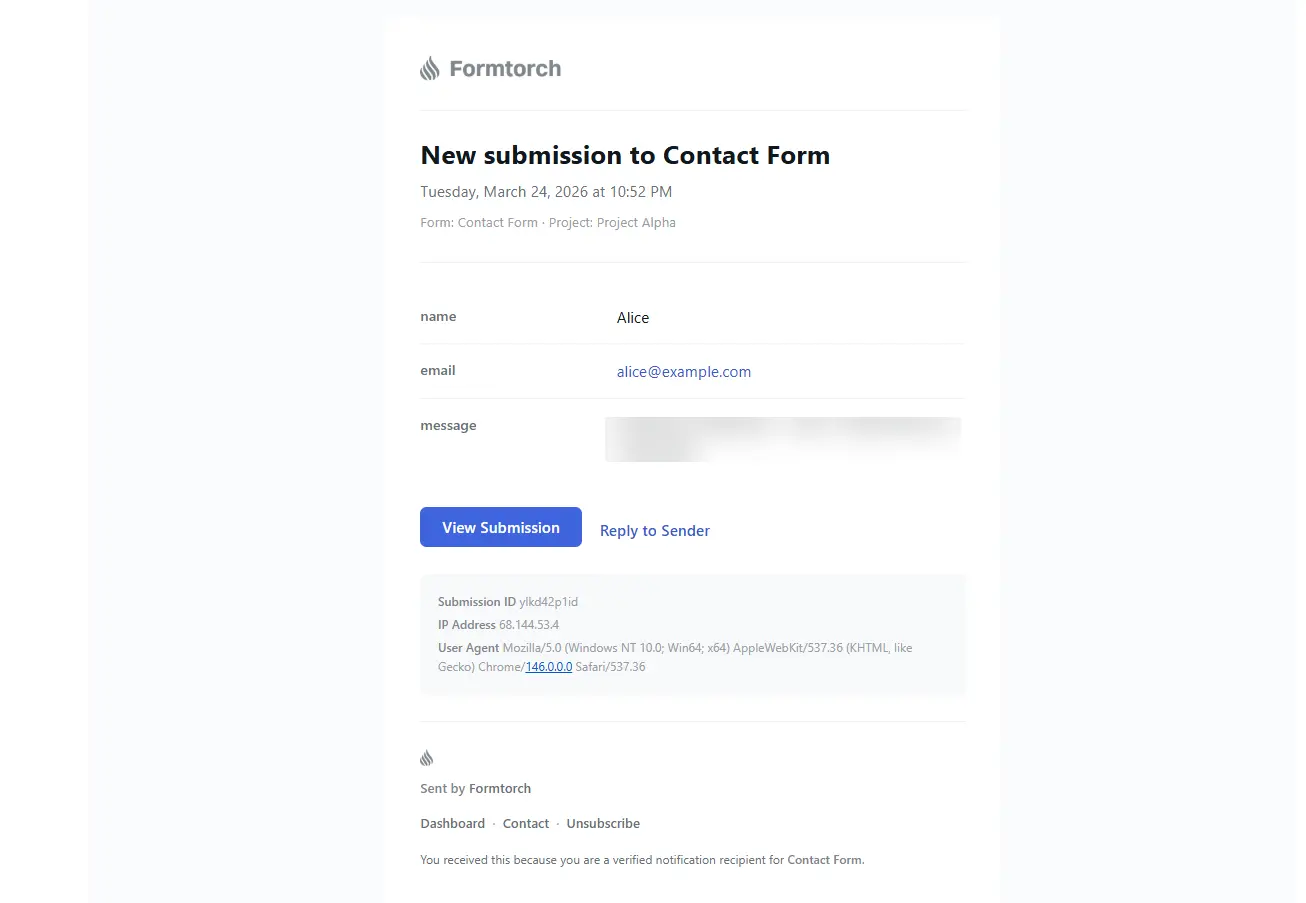
If you set up email notifications, check your inbox. The email should land within a few seconds.
You’re done
Your form is live and collecting submissions. That’s it. 🎉
From here, you can set up a custom redirect, enable test mode while you’re building, or explore the dashboard to see everything Formtorch captured.
Redirect after submission
By default, Formtorch shows a plain success page after submission. To redirect to your own page, open your form in the dashboard → Settings → Success Redirect, turn it on, and enter your URL.
Or add a hidden _redirect field pointing to a page on the same site:
<input type="hidden" name="_redirect" value="https://yoursite.com/thank-you" />See Custom Redirects for how the two options differ.
Test mode
Use test mode while developing to avoid sending emails or using your quota.
Add _test=true to mark a submission as a test. Test submissions appear in the dashboard with a badge, skip email notifications, and don’t count toward your quota.
<input type="hidden" name="_test" value="true" />Remove this before going live.
Using a framework? See the Quickstart for React, Next.js, Astro, Webflow, or Framer.
The same concepts apply, only the setup changes.
Next steps
Your form is connected. Here are the most common things to set up next.
Full code example
A complete contact form with redirect and test mode included:
<form action="https://formtorch.com/f/YOUR_FORM_ID" method="POST">
  <input
    type="hidden"
    name="_redirect"
    value="https://yoursite.com/thank-you"
  />
  <input type="hidden" name="_test" value="true" />

  <label>
    Name
    <input type="text" name="name" placeholder="Your name" required />
  </label>

  <label>
    Email
    <input type="email" name="email" placeholder="you@example.com" required />
  </label>

  <label>
    Message
    <textarea
      name="message"
      placeholder="Your message"
      rows="5"
      required
    ></textarea>
  </label>

  <button type="submit">Send message</button>
</form>