Submissions
Every POST to your form endpoint creates a submission. Formtorch stores the field data, runs spam scoring, and records delivery status for any notifications or webhooks.
What gets stored
Each submission includes:
| Field | Description |
|---|---|
| Field data | All form fields as key-value pairs (JSON) |
| IP address | The submitter’s IP (used for rate limiting and spam signals) |
| User agent | The browser or client string |
| Timestamp | When the submission was received |
| Spam score | A numeric score from 0 to 100+ |
| Spam signals | Which signals fired |
| Delivery status | Whether notifications and webhooks were sent successfully |
Reserved fields (prefixed with _) are not stored as submission data.
Spam scoring
Every submission is scored by TorchWarden, Formtorch’s internal spam detection system. The score ranges from 0 (clean) to 100+ (obvious spam), with a threshold.
Submissions at or above our threshold are marked as spam. They’re stored and visible in the dashboard with a spam badge, but they:
- Don’t trigger email notifications
- Don’t trigger webhooks
- Don’t count toward your submission quota
You can review and un-flag spam submissions from the dashboard if something was incorrectly classified.
Dashboard
Open any form in the dashboard to see its submissions. You can:
- Search by field value (e.g. find a specific email address)
- Filter by status: all, spam, test
- View full field data for each submission
- Delete submissions individually or in bulk
Manual resend & delivery history
Every submission’s row in the dashboard has an action for pushing it to a destination on demand, separate from the automatic delivery that already ran when it first came in.
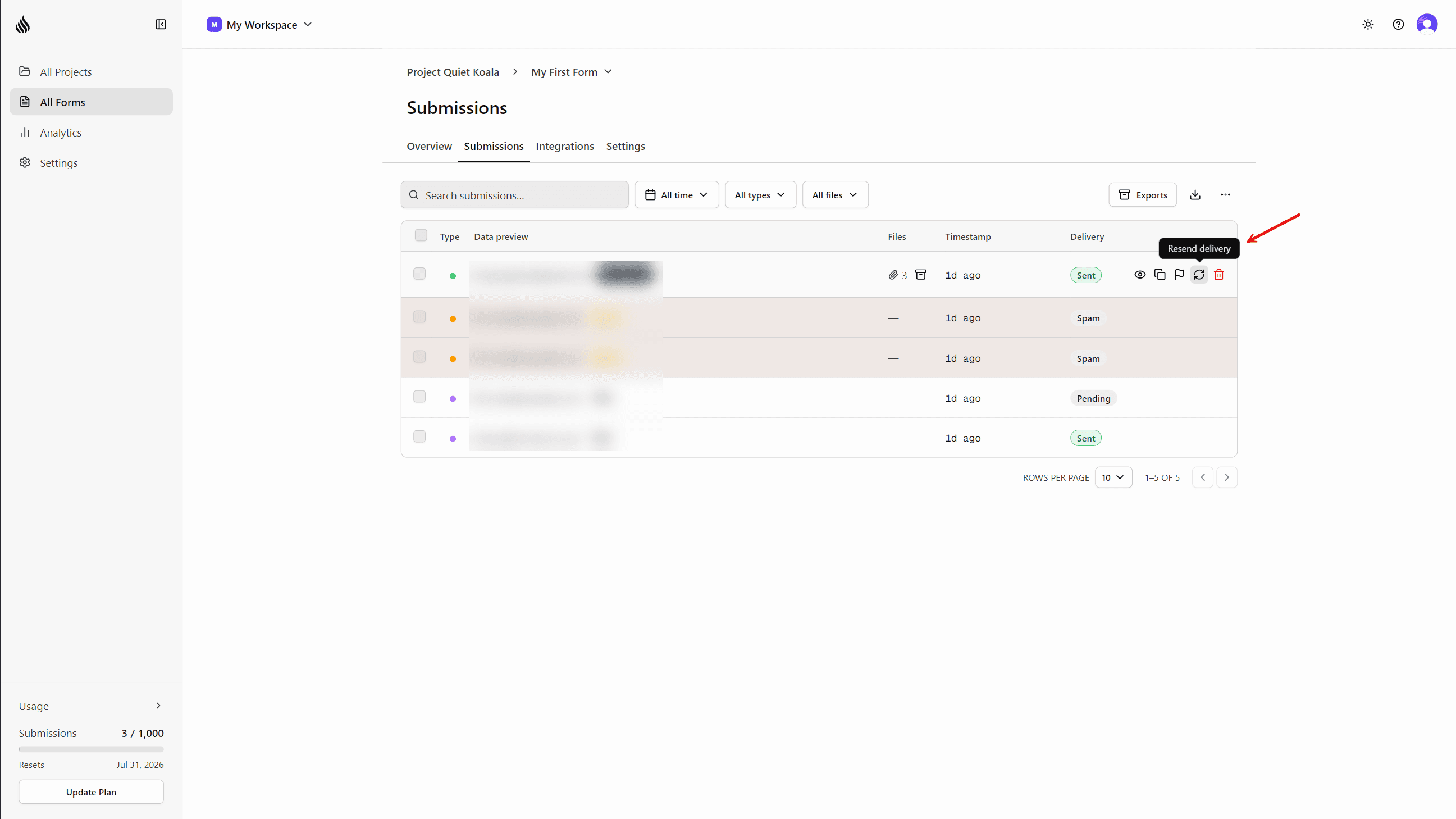
The action shown depends on the submission’s state:
- Retry delivery: for a submission whose own delivery pipeline is stuck or failed, this retries that original pipeline.
- Resend delivery: for a submission that already finished delivering (successfully or not), this opens a destination picker so you can push it again to email, Google Sheets, or both, independently of what already happened.
Click the Sent badge on any submission to see every past delivery attempt, both automatic and manually triggered, in one popover.
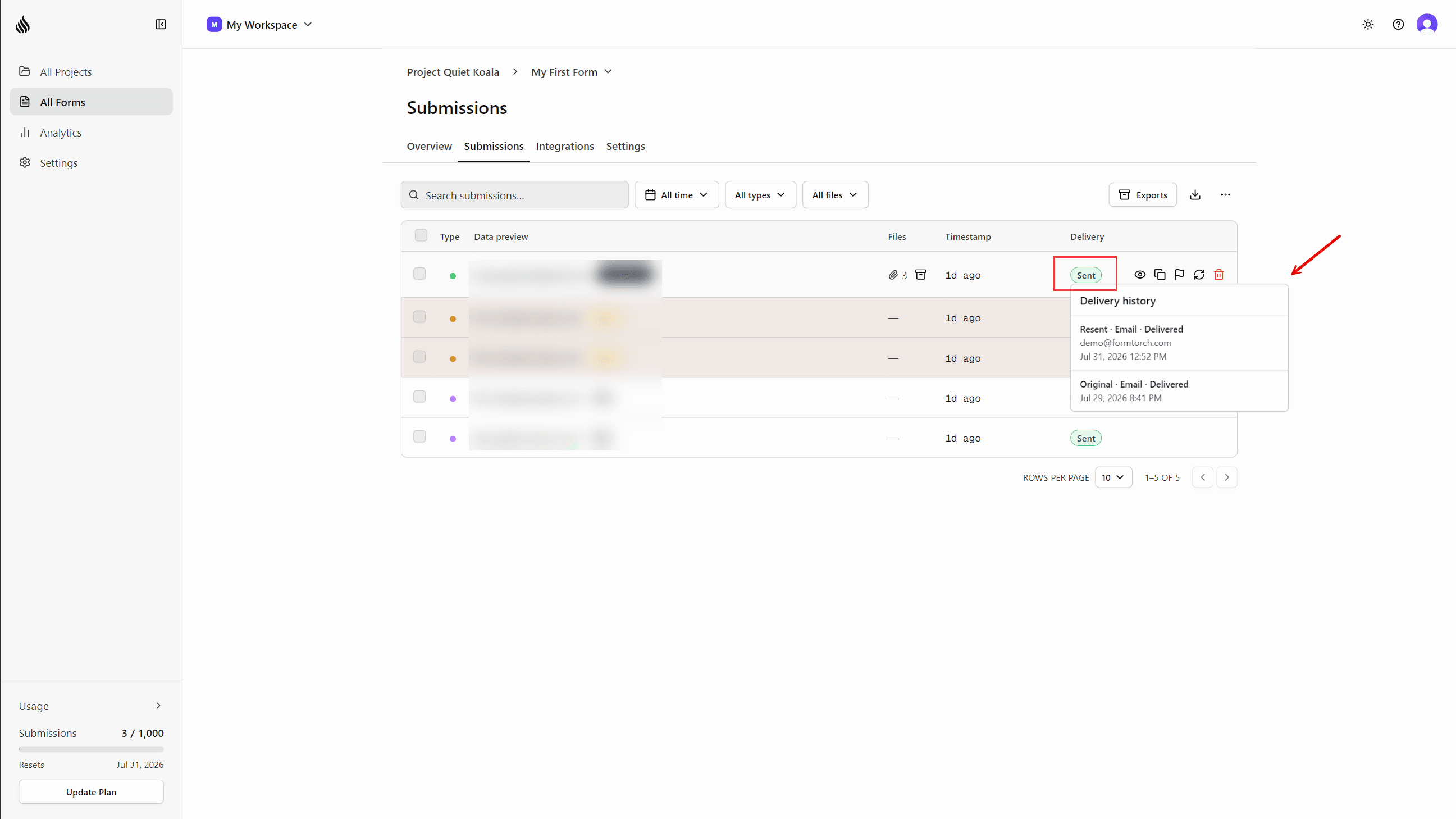
If a resend attempt’s outcome can’t be confirmed (for example, a worker crashed after the request may have already gone out), Formtorch marks it as uncertain rather than guessing, and shows an explicit “resend anyway” confirmation before retrying. A possibly-already-delivered submission is never silently duplicated.
Manual resend is available wherever the underlying destination already is: notification email on all plans, Google Sheets on Starter and Pro.
Exporting to CSV
Every form has a CSV export. Go to the form’s submissions page and click Export. You can filter by date range before exporting:
| Range | Description |
|---|---|
| Last 24 hours | Submissions from the past day |
| Last 7 days | Submissions from the past week |
| Last 30 days | Submissions from the past month |
| All time | Every submission for this form |
The CSV includes all field values plus metadata columns (submittedAt, isSpam, spamScore).
Test submissions
Submissions with _test=true are stored separately. They:
- Show up in the dashboard with a “Test” badge
- Are excluded from quota counts
- Don’t trigger email notifications
- Don’t trigger webhooks
Use them freely during development to verify your form is connected correctly.
The submission detail view shows the raw field data exactly as it was
received. If a field is missing, check that your input has a name attribute
Fields without a name attribute are not submitted by the browser.