React Quickstart
Submit forms from React using fetch and FormData. This works in any React setup, including Vite, Create React App, and Next.js client components.
What you’ll build
In this guide, you’ll build a working contact form in React that:
- sends submissions to Formtorch using
fetch - shows loading, success, and error states
- works without managing individual field state
Steps
Create a form in the dashboard
Sign in to the Formtorch Dashboard , create a project, then create a form. Copy the endpoint URL.
It looks like this:
https://formtorch.com/f/abcd1234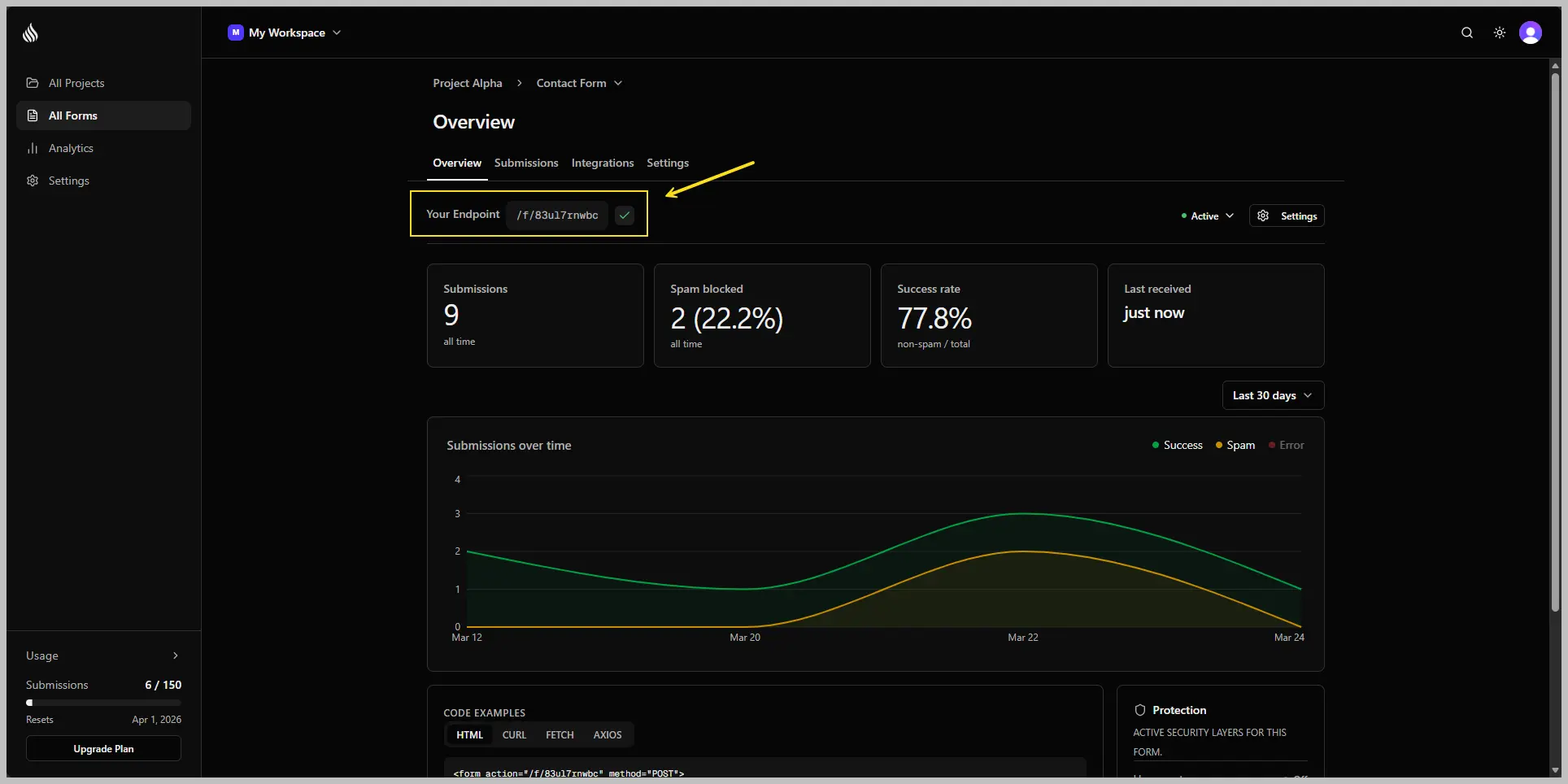
Build the form component
Create a form with an onSubmit handler. Use FormData to capture all fields at once.
"use client"; // only needed in Next.js App Router

import { useState } from "react";

export function ContactForm() {
  const [status, setStatus] = useState<
    "idle" | "loading" | "success" | "error"
  >("idle");

  async function handleSubmit(e: React.FormEvent<HTMLFormElement>) {
    e.preventDefault();
    setStatus("loading");

    const response = await fetch("https://formtorch.com/f/YOUR_FORM_ID", {
      method: "POST",
      headers: { "X-Requested-With": "XMLHttpRequest" },
      body: new FormData(e.currentTarget),
    });

    setStatus(response.ok ? "success" : "error");
  }

  if (status === "success") {
    return <p>Message sent. We'll be in touch soon.</p>;
  }

  return (
    <form onSubmit={handleSubmit}>
      <input name="name" type="text" placeholder="Name" required />
      <input name="email" type="email" placeholder="Email" required />
      <textarea name="message" placeholder="Message" required />

      <button type="submit" disabled={status === "loading"}>
        {status === "loading" ? "Sending…" : "Send message"}
      </button>

      {status === "error" && <p>Something went wrong. Please try again.</p>}
    </form>
  );
}
FormData collects all inputs automatically, so you don’t need to manage state for each field. Hidden Formtorch fields like _test and _honeypot work the same way as in a plain HTML form.
Render the form
import { ContactForm } from "@/components/ContactForm";

export default function ContactPage() {
  return (
    <main>
      <h1>Contact</h1>
      <ContactForm />
    </main>
  );
}
You’re done
Your React form is now sending submissions directly to Formtorch.
Submit the form once, then check your dashboard. You’ll see the submission instantly.
If email notifications are enabled, you should receive one within a few seconds.
From here, you can add a redirect, enable test mode, or customize the UI further. Read more below.
Sending JSON instead of FormData
If you prefer to send JSON (for example, from a fully controlled form), you can send JSON instead:
const response = await fetch("https://formtorch.com/f/YOUR_FORM_ID", {
  method: "POST",
  headers: { "Content-Type": "application/json" },
  body: JSON.stringify({
    name: formState.name,
    email: formState.email,
    message: formState.message,
  }),
});
Redirect after submission
When you submit with fetch, the browser stays on your page, so redirect in your own code after a successful response. Send the X-Requested-With header so Formtorch always returns JSON instead of redirecting:
const response = await fetch("https://formtorch.com/f/YOUR_FORM_ID", {
  method: "POST",
  headers: { "X-Requested-With": "XMLHttpRequest" },
  body: new FormData(e.currentTarget),
});

if (response.ok) {
  window.location.href = "/thank-you";
}
The dashboard’s Success Redirect setting and the _redirect field only apply to standard HTML form posts. See Custom Redirects.
Test mode
Use test mode while developing to avoid sending emails or using your quota.
const data = new FormData(e.currentTarget);
data.append("_test", "true");

await fetch("https://formtorch.com/f/YOUR_FORM_ID", {
  method: "POST",
  headers: { "X-Requested-With": "XMLHttpRequest" },
  body: data,
});
Remove this before going live.
The 'use client' directive is only needed in Next.js App Router. For plain
React (Vite, CRA), leave it out. For a Next.js server action approach that
avoids client-side fetch entirely, see the Next.js
quickstart.
Next steps
Your form is connected. Here are the most common things to set up next.