Next.js Quickstart
Submit forms from Next.js without building your own backend.
The recommended approach is to use a server action. Your form submits to your Next.js app, which forwards the data to Formtorch.
This keeps the setup simple, avoids CORS issues, and works without client-side JavaScript.
What you’ll build
In this guide, you’ll build a working contact form in Next.js that:
- sends submissions to Formtorch through a server action
- redirects to a thank-you page after success
- works without client-side JavaScript
Server action (recommended)
For most Next.js apps, a server action is the right choice. Your form submits to your Next.js server, and your server forwards the data to Formtorch. That means no CORS issues, no extra API routes, and the form works even if the user has JavaScript disabled.
Create a form endpoint
Sign in to Formtorch Dashboard , create a project, then create a form. Copy the endpoint URL.
It looks like this:
https://formtorch.com/f/abcd1234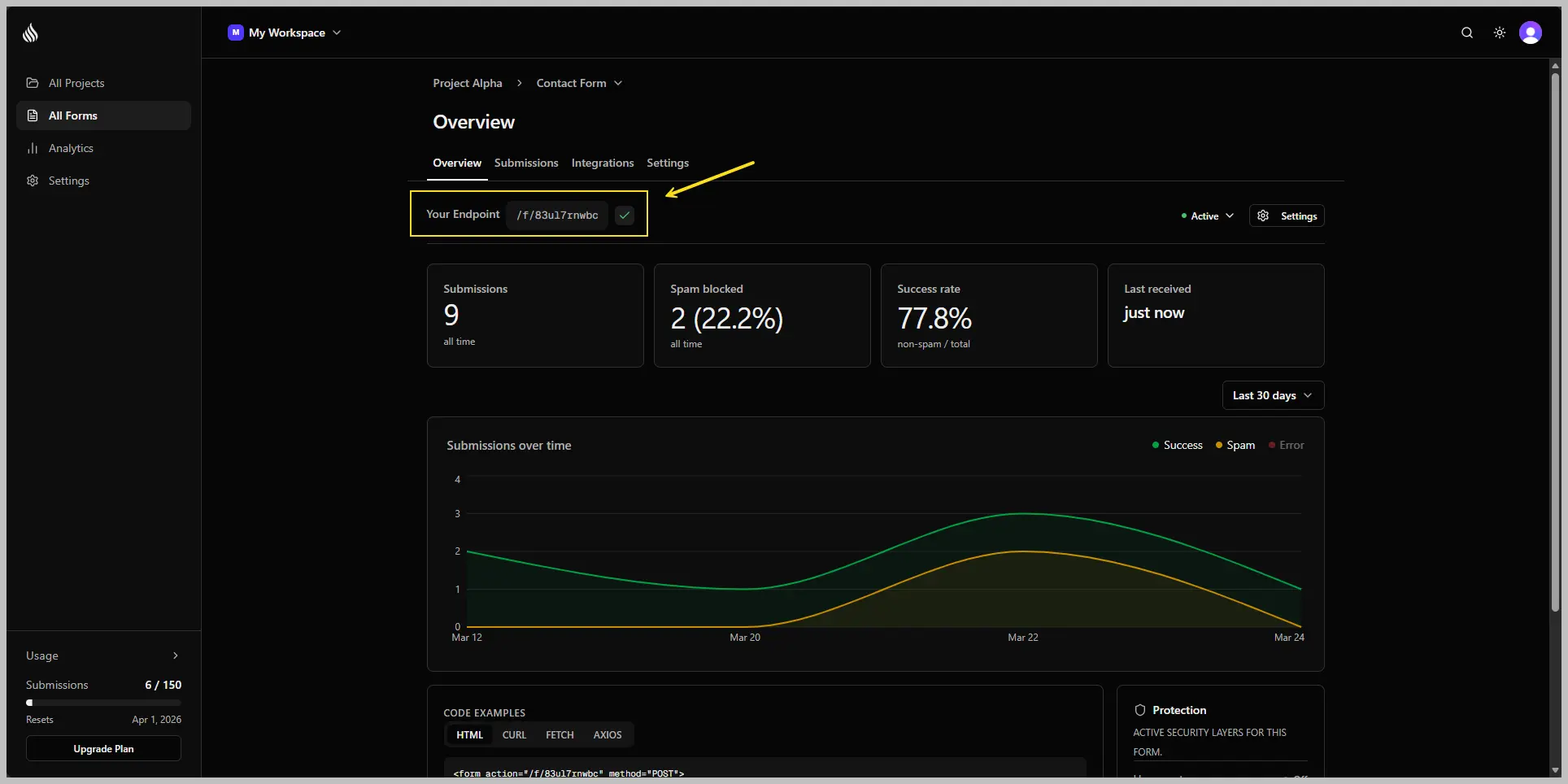
Create a server action
"use server";

import { redirect } from "next/navigation";

export async function submitContact(formData: FormData) {
  const response = await fetch("https://formtorch.com/f/YOUR_FORM_ID", {
    method: "POST",
    headers: { "X-Requested-With": "XMLHttpRequest" },
    body: formData,
  });

  if (!response.ok) {
    throw new Error("Failed to submit form");
  }

  redirect("/contact/thank-you");
}
Because this forwards the original FormData, standard fields and hidden Formtorch fields work the same way as in a plain HTML form.
Pass the action to your form
import { submitContact } from "./actions";

export default function ContactPage() {
  return (
    <main>
      <h1>Contact</h1>
      <form action={submitContact}>
        <input name="name" type="text" placeholder="Name" required />
        <input name="email" type="email" placeholder="Email" required />
        <textarea name="message" placeholder="Message" required />
        <button type="submit">Send message</button>
      </form>
    </main>
  );
}
Create the thank-you page
export default function ThankYouPage() {
  return <p>Thanks, we'll be in touch soon.</p>;
}
You’re done
Your Next.js form is now sending submissions through your server action and into Formtorch.
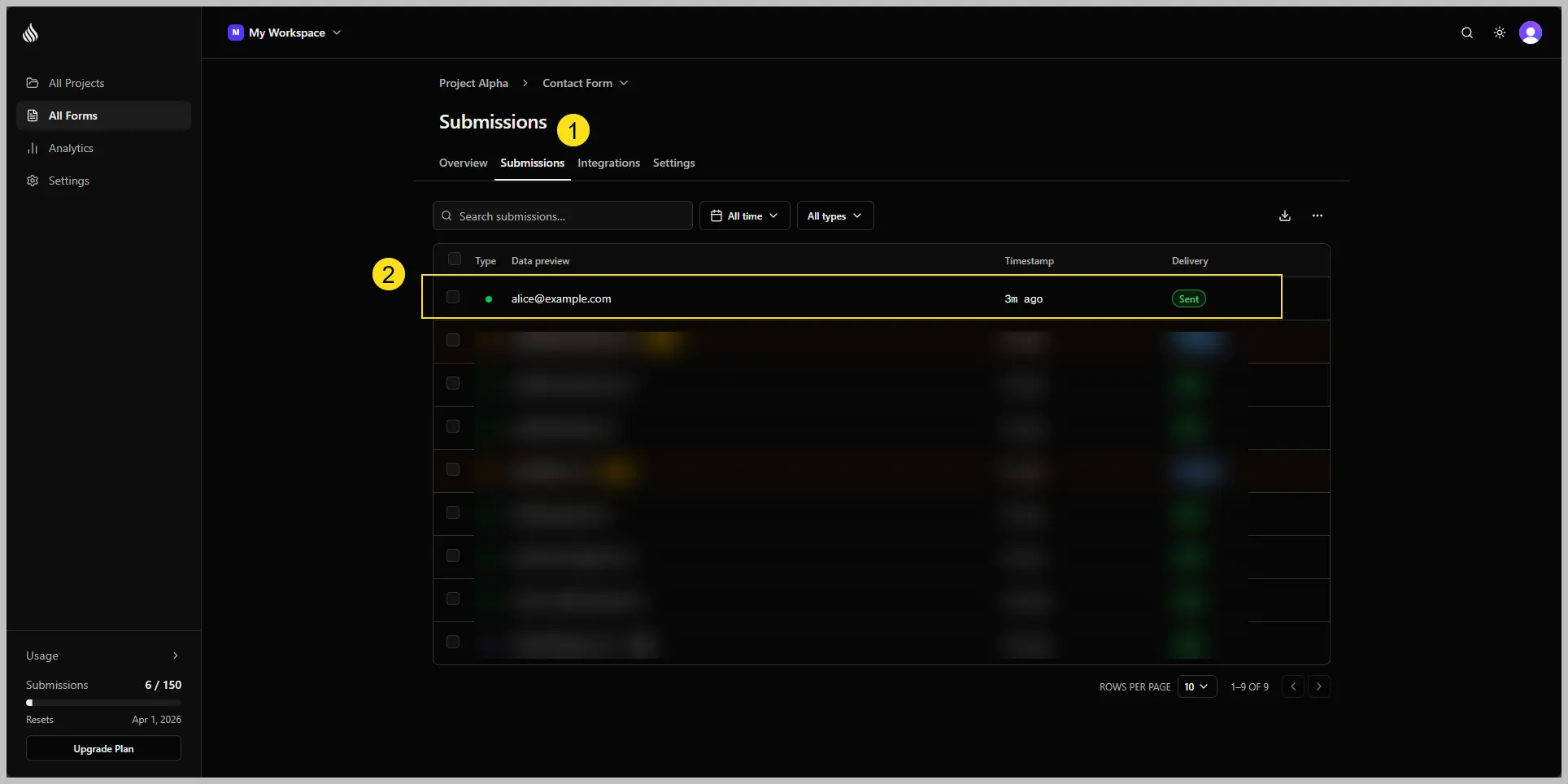
Submit the form once, then check your dashboard . You’ll see the submission instantly.
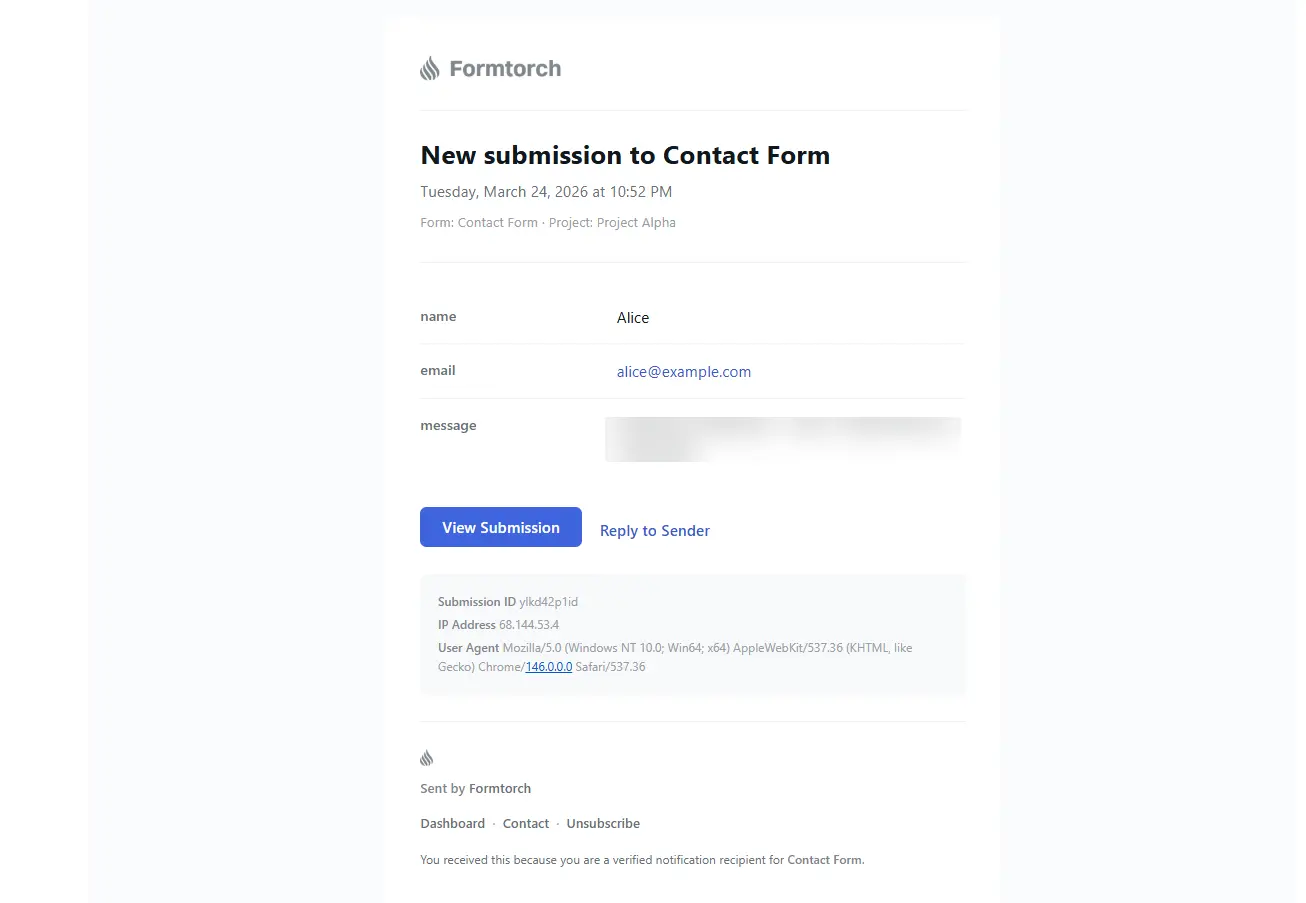
If email notifications are enabled, you should receive one within a few seconds.
Showing pending state with useFormStatus
To disable the submit button while the form is processing, pull out the button into its own client component and use the useFormStatus hook:
"use client";

import { useFormStatus } from "react-dom";

export function SubmitButton() {
  const { pending } = useFormStatus();
  return (
    <button type="submit" disabled={pending}>
      {pending ? "Sending…" : "Send message"}
    </button>
  );
}
Then use it inside your server-rendered form:
import { submitContact } from "./actions";
import { SubmitButton } from "./submit-button";

export default function ContactPage() {
  return (
    <form action={submitContact}>
      <input name="name" type="text" placeholder="Name" required />
      <input name="email" type="email" placeholder="Email" required />
      <textarea name="message" placeholder="Message" required />
      <SubmitButton />
    </form>
  );
}
The server action approach avoids CORS entirely. The request goes from your Next.js server to Formtorch, never from the browser. This also means the submission works even if the user has JavaScript disabled.
Client component
Use a client component when you need inline success states, custom validation flows, or more interactive UI.
For most forms, the server action above is simpler and more resilient. Reach for this when you specifically need client-side behavior.
"use client";

import { useState } from "react";

export default function ContactPage() {
  const [status, setStatus] = useState<
    "idle" | "loading" | "success" | "error"
  >("idle");

  async function handleSubmit(e: React.FormEvent<HTMLFormElement>) {
    e.preventDefault();
    setStatus("loading");
    const res = await fetch("https://formtorch.com/f/YOUR_FORM_ID", {
      method: "POST",
      headers: { "X-Requested-With": "XMLHttpRequest" },
      body: new FormData(e.currentTarget),
    });
    setStatus(res.ok ? "success" : "error");
  }

  if (status === "success") return <p>Message sent. We'll be in touch soon.</p>;

  return (
    <form onSubmit={handleSubmit}>
      <input name="name" type="text" placeholder="Name" required />
      <input name="email" type="email" placeholder="Email" required />
      <textarea name="message" placeholder="Message" required />
      <button type="submit" disabled={status === "loading"}>
        {status === "loading" ? "Sending…" : "Send message"}
      </button>
      {status === "error" && <p>Something went wrong. Please try again.</p>}
    </form>
  );
}
Next steps
Your form is connected. Here are the most common things to set up next.