File Uploads
Formtorch accepts file attachments alongside your form fields. Files are uploaded directly from the browser to Formtorch’s storage, then attached to the submission when the form is sent.
Before you begin
- A Starter or Pro plan.
- Uploads enabled on the target form.
- Supported file types selected for that form.
- A JavaScript implementation of the upload flow (a plain
<input type="file">alone does not store the file).
How uploads work
Uploading is a two-phase flow with three client operations, so it needs a small amount of JavaScript:
Phase 1: Request an upload policy
Your page calls POST https://formtorch.com/api/uploads/intent with the
form ID and each file’s name, MIME type, and size. Formtorch validates the file
against your plan’s limits and returns a short-lived upload policy per file.
Phase 1: Upload the file to storage
The browser POSTs each file straight to storage using the returned policy. Uploading a file to storage on its own does not attach it to a submission.
Phase 2: Submit the form with the file ID
Submit your form to https://formtorch.com/f/YOUR_FORM_ID with a _file_ids
field naming the uploaded files. Formtorch verifies each file before attaching
it to the submission. The upload only counts once this request succeeds.
See File Upload for complete, copy-pasteable code.
A plain <input type="file"> with no accompanying script does not store the
file. The submission records a [File: name, bytes] placeholder instead. Use
the two-phase flow above for real uploads.
Request an upload policy immediately before uploading, not ahead of time. Policies are short-lived; if one expires before the upload finishes, request a new policy rather than retrying with the old one. Files that are never uploaded, or whose submission is never completed, are cleaned up automatically — you don’t need to do anything.
Enabling uploads on a form
Uploads are off by default and are enabled per form, so a form only accepts files
once you have turned them on for it. Open your form in the dashboard, go to
Settings → File Uploads, turn on Accept file uploads, and select the
accepted file types. A form that has not been enabled rejects upload requests
with FORM_UPLOADS_NOT_ENABLED.
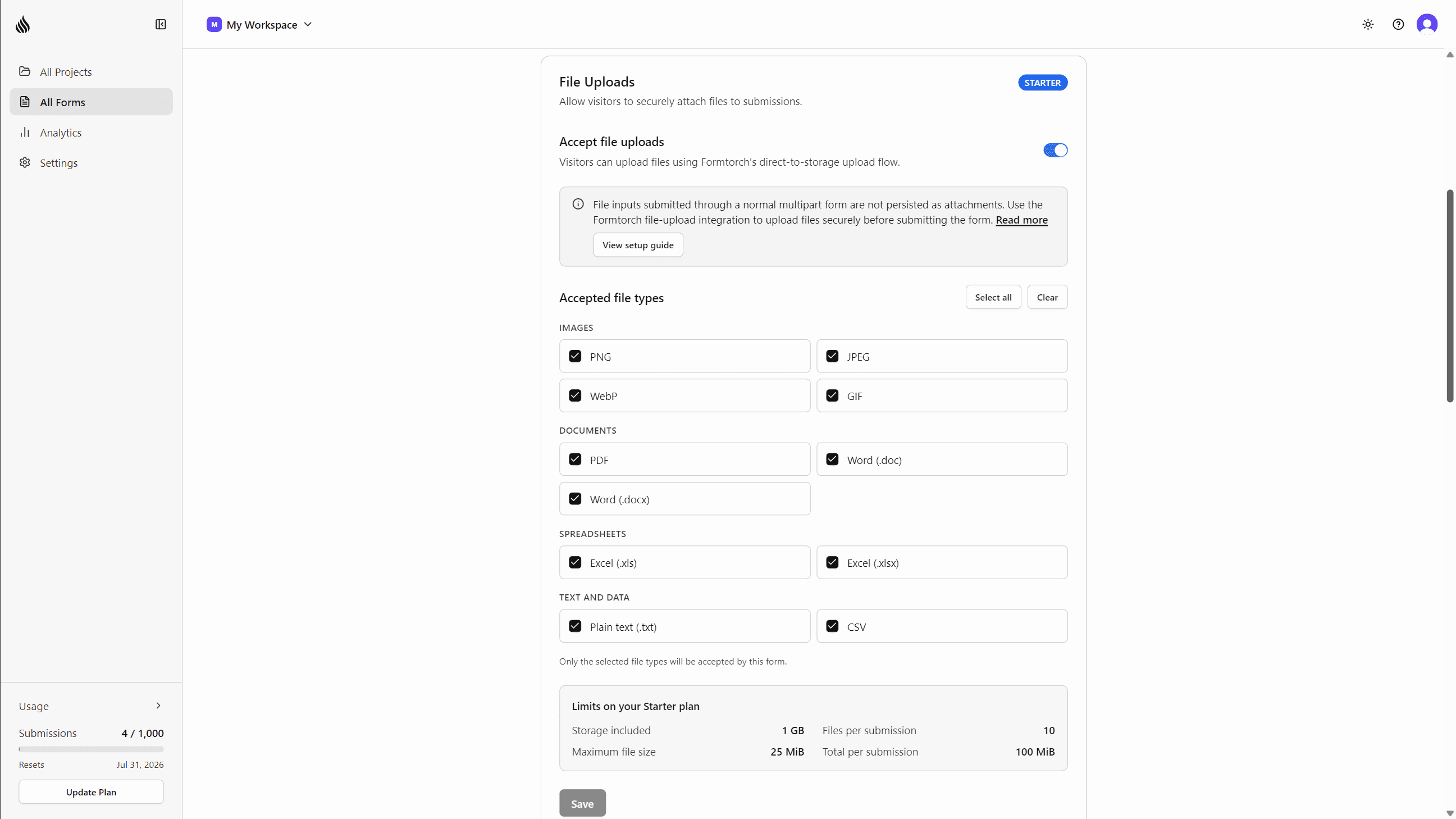
Limits
| Limit | Free | Starter | Pro |
|---|---|---|---|
| File uploads | Not available | Yes | Yes |
| Total storage | - | 1 GB | 5 GB |
| Max size per file | - | 25 MiB | 25 MiB |
| Max files per submission | - | 10 | 10 |
| Max total size per submission | - | 100 MiB | 100 MiB |
Storage is a single allowance for your whole workspace, shared across every form and submission you own; it is not tracked per form. Deleting a submission or an individual file frees its storage as part of that deletion, so you don’t need a separate cleanup step.
Accepted file types
Formtorch uses an allowlist. These types are accepted:
| Category | Types |
|---|---|
| Documents | PDF, DOC, DOCX, XLS, XLSX |
| Images | PNG, JPEG, WebP, GIF |
| Text | text/plain, CSV |
Anything else is rejected with FILE_TYPE_NOT_ALLOWED, including executables,
scripts, archives, and HTML. A form can narrow this list further, but never
widen it.
The type is verified against the file’s actual bytes, not its filename or the
Content-Type the browser sent, so renaming an executable to .pdf does not
get it through.
Malware scanning
Every uploaded file is scanned for malware with AWS GuardDuty before it becomes downloadable. While a scan is in progress, the file appears in the submission’s Attachments tab as Scanning and can’t yet be downloaded; this normally clears within moments of upload.
A file that fails its scan is quarantined: it’s permanently blocked from download and export, and its contents are removed. This is unconditional and cannot be overridden. It still appears in the submission’s Attachments tab alongside the submission’s other files, just with a Blocked for security badge instead of a download button.
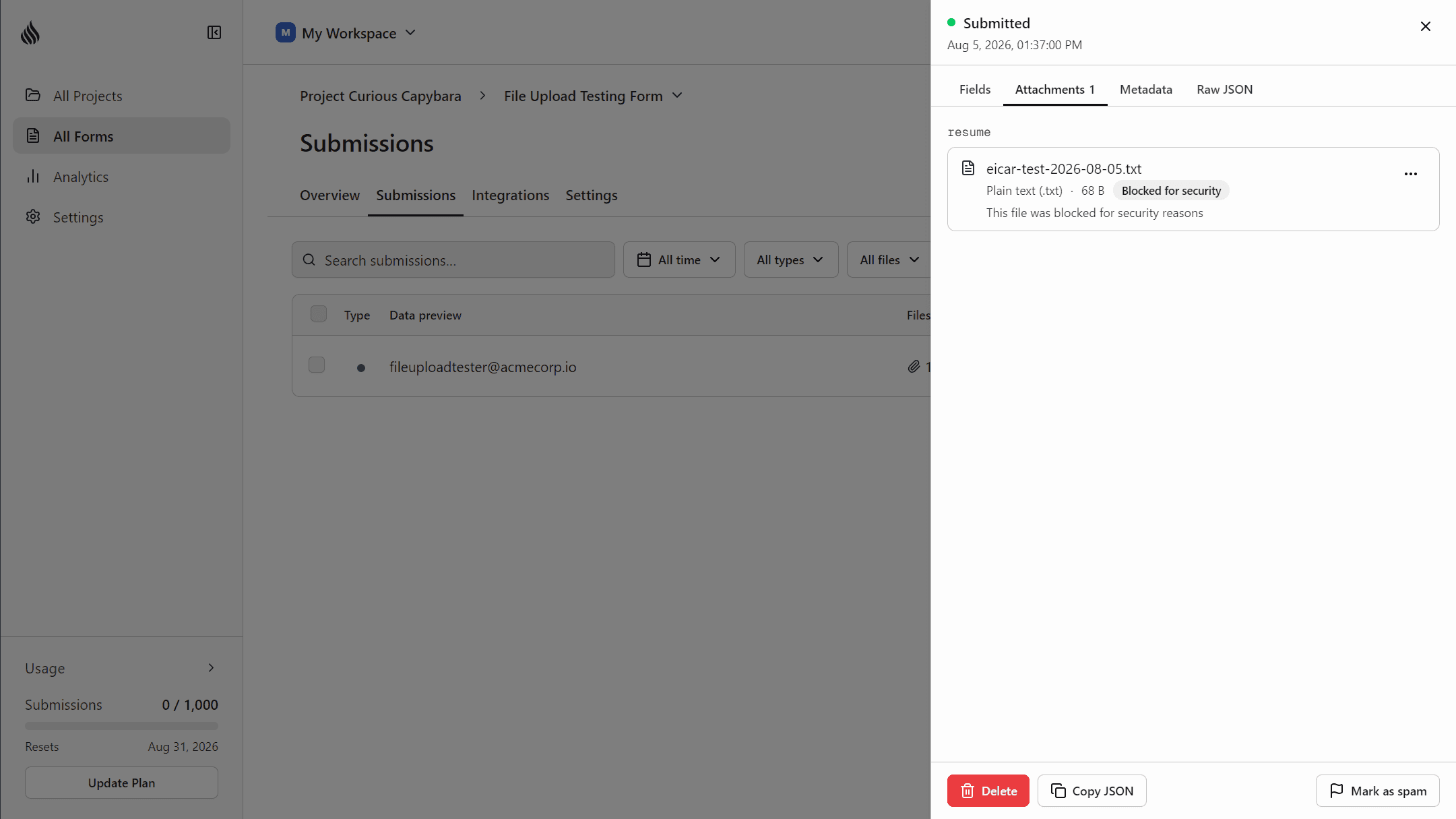
Scanning happens automatically on every upload. There’s no setup or configuration required.
Getting uploaded files back
Each attached file appears in the submission as a file reference with its ID, name, MIME type, and size. To download the contents:
- In the dashboard, open a submission from the Submissions table; its Attachments tab lists each file with its name, size, and a download button.
- Email notifications include a download link for each attached file. Links are signed and expire after 30 days.
- Webhook, Zapier, and Google Sheets deliveries include a
downloadUrlalongside the file’s metadata. - The REST API exposes
GET /v1/submissions/:submissionId/filesandGET /v1/submissions/:submissionId/files/:fileId/download, which returns a short-lived download URL. See Authentication for API keys.
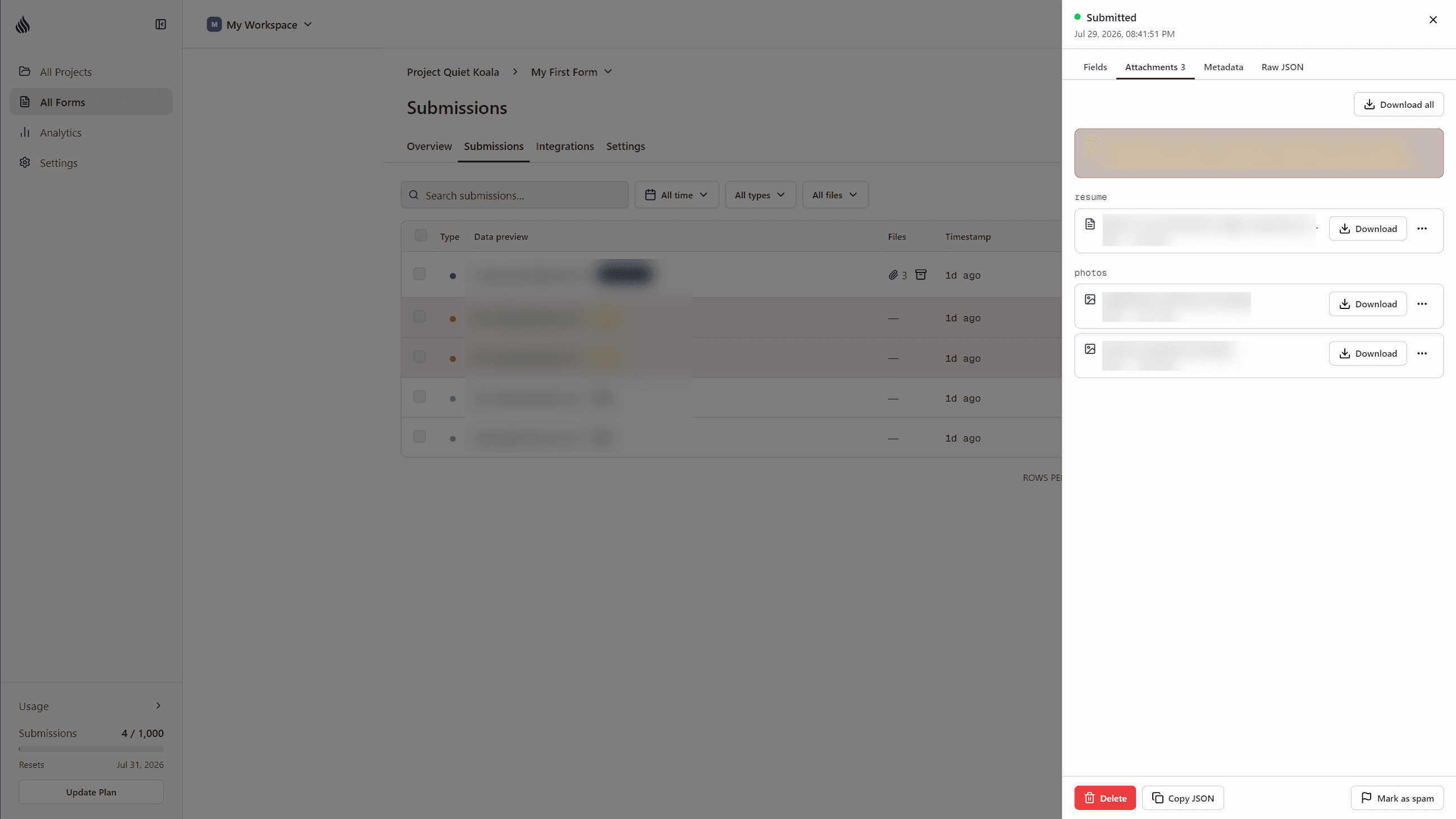
Signed download links are bearer links: anyone who has a valid link can download the file until it expires, with no login required. Don’t publish or forward these links publicly.
File retention
Files follow the same retention timeline as their submission:
- Active — fully downloadable and counted toward your storage.
- Locked (after your plan’s active window ends) — the submission and its files are no longer downloadable, but the files remain stored and keep counting toward your storage until they’re permanently deleted.
- Permanently deleted — the files are removed and the storage they used is freed.
Upgrading your plan immediately restores access to previously-locked submissions and their files, with no manual action needed.
Error codes
| Code | Meaning | Resolution |
|---|---|---|
FORM_UPLOADS_NOT_ENABLED | Uploads are not enabled for this form | Enable uploads in the form’s Settings |
FILE_TYPE_NOT_ALLOWED | MIME type is not on the allowlist | Choose an allowed type, or check the form’s narrowed allowlist in Settings |
FILE_TOO_LARGE | A single file exceeds the per-file cap | Choose a smaller file |
TOO_MANY_FILES | More files than the plan allows per submission | Reduce the number of selected files |
TOTAL_UPLOAD_TOO_LARGE | Files together exceed the per-submission cap | Reduce the combined upload size |
STORAGE_QUOTA_EXCEEDED | The account’s total storage limit is reached | Delete stored files, or upgrade the workspace |
FILE_UPLOAD_INCOMPLETE | The uploaded object is missing, truncated, or is not the declared type | Request a new upload policy and upload the file again |
INVALID_FILE_IDS | A referenced file ID does not exist or is not yours | Don’t reuse IDs from another form, workspace, or an expired/invalid upload |
Never trust uploaded filenames. If you process uploads programmatically, validate by content, not by extension, and treat the original filename as untrusted text.